Work — leads, holds & the pipeline
Track a job from the first ask through hold, offer, confirmed, active and wrapped in one stage-filtered list; watch overlapping holds on the calendar; and keep the referral network that feeds you work.
Everything you work on — a lead someone mentioned at a load-out, a penciled hold, a booked show, a wrapped run — lives in one place: the Work hub. It is a single list you filter by stage, so the same record travels from "somebody asked me about this" all the way to "that job is finished," without ever being re-typed into a second system.
Open it from Work in the top navigation. Five sub-tabs sit underneath:
- Engagements — the stage-filtered list. This is the hub.
- Calendar — every engagement with a date on a two-month grid, plus a paint mode for sketching a span.
- Holds — the hold desk: which engagements want the same days, in what order, and until when.
- Network — your referral network: who feeds you work and who you feed.
- Contacts — the people directory behind it.
Old links still work
This used to be three separate pages — Projects, Gigs, and Work Plans. They are one
hub now. /projects, /gigs, /gigs/board, /gigs/calendar and /work-plans all forward
into Work rather than breaking, so old bookmarks keep resolving.
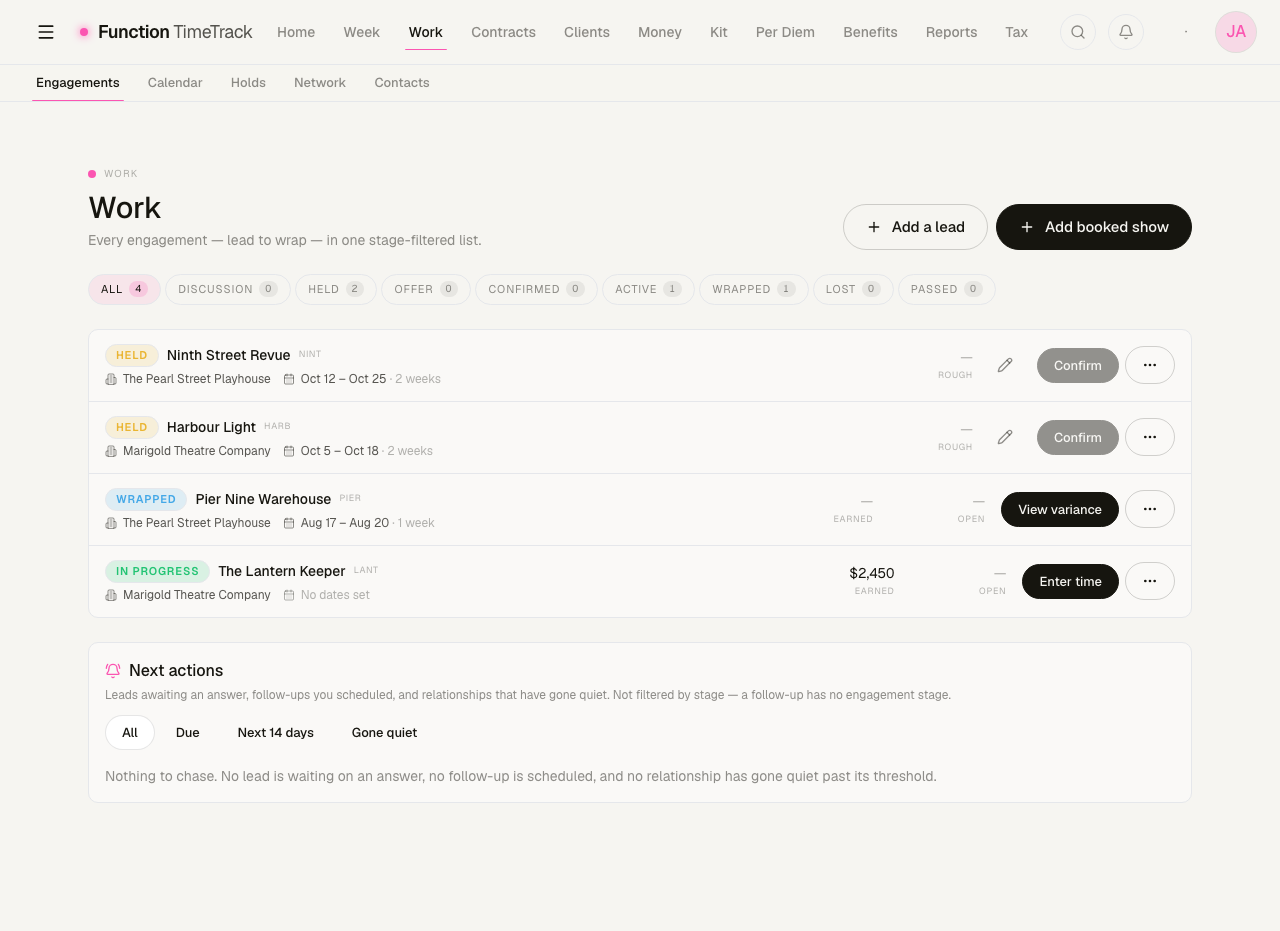
The stage rail
The rail across the top of Engagements is the primary control. Each tab filters the list to one stage, and the tab carries a live count:
| Stage | What it means |
|---|---|
| All | No filter — everything, at every stage. |
| Discussion | Someone reached out, or you heard about a job. You're in conversation. |
| Held | You're penciled in. Dates are being held; nothing is committed. |
| Offer | A firm offer is on the table. |
| Confirmed | You accepted. Booked, not yet started. |
| Active | The show is running and accruing time. |
| Wrapped | Finished. |
| Lost | It went to someone else, or fell through. |
| Passed | You turned it down, or released the hold. |
Active is where the hub opens — the shows you are actually on — with All one click away.
The stage is part of the address (/work?stage=held), so any view is bookmarkable and shareable.
The rail tab reads Active; the badge on the row itself reads In progress. They are the same stage under two labels — the tab names what you are filtering to, the badge names what the show is doing.
Held is exactly what it sounds like in the industry: a soft pencil that can evaporate. Only Confirmed and beyond mean the job is yours. The Calendar exists precisely because penciled dates overlap.
Adding work
Two buttons sit in the header, and the difference between them matters:
- Add a lead — for something that is not yours yet. A title is the only required field.
- Add booked show — for a real, confirmed production, with a show code and a contract.
Adding a lead
- Click Add a lead.
- Give it a Title — the only required field. Make it recognizable:
Marvel Feature — Assoc LD. - Set the Stage and a Priority.
- Fill in whatever you know: Company / Production, Venue, CRM contact (search your network), Contact person / email / phone, Location.
- If somebody tipped you off, pick them under Referred by so the lead is credited to them.
- Optionally set Answer needed by, the Forecast fields (Est. rate ($/day), Est. days, Est. revenue ($)), a Hold start / Hold end window, the expected Start date / End date, and Notes.
Est. revenue is the field that counts. Filling in rate and days does not compute revenue for you. If you want a lead to carry a dollar figure into the roll-ups, put a number in Est. revenue yourself.
Moving work through the stages
Each row carries a cluster of actions that changes with the stage it is in — the hub only ever offers you the moves that make sense from where the job actually is.
| Stage | Actions on the row |
|---|---|
| Discussion / Offer | Confirm · Hold · Pass on it · Lost it |
| Held | Confirm · Hold calendar · Release · Lost it |
| Confirmed | Open plan · Open show |
| Active | Enter time · Timesheet · Close out · Open show |
| Wrapped | View variance · Reopen · Open show |
| Lost / Passed | Open show |
Confirm is the one that converts a lead into a real show. Close out wraps an active show, and Reopen undoes it — nothing here is a one-way door.
Two different endings, deliberately named apart
Pass on it and Lost it are not the same fact. Passing means you turned it down; losing means they went with somebody else. Both open a short capture so you can record who took it — which is what makes the network numbers worth anything later.
When two jobs want the same days
The Held stage tells you a date is spoken for. It does not tell you who else wants it, where you rank, or when the hold dies — and those are the three facts the decision actually turns on.
That is what the Holds sub-tab is for. It is a screen of its own because it answers a different question from the list: not "what have I got", but "which of these do I keep".
See The hold desk for first refusal versus hold, hold rank, release-by dates, the collision screen, and where a cancellation fee lands when a held job evaporates.
Next actions
When the hub has anything waiting on you, a Next actions badge appears in the header with an honest count. Click it to jump to the queue at the foot of the page. When there is nothing waiting, the badge is not rendered — a badge reading "0" is an invitation to scroll to nothing.
The Calendar
Freelance holds overlap. You get penciled for two shows the same week and have to choose. The Calendar sub-tab draws every engagement that has a date — booked, in progress, and held — on a grid of two months side by side, one meaning per colour.
Three counters sit above it: committed days (out of the days on screen), open days, and conflicts. A Show lost / passed checkbox brings back the ones you turned down. A colour key spells out the four states — in progress, booked, tentative, wrapped — so a block's meaning never depends on remembering the palette.
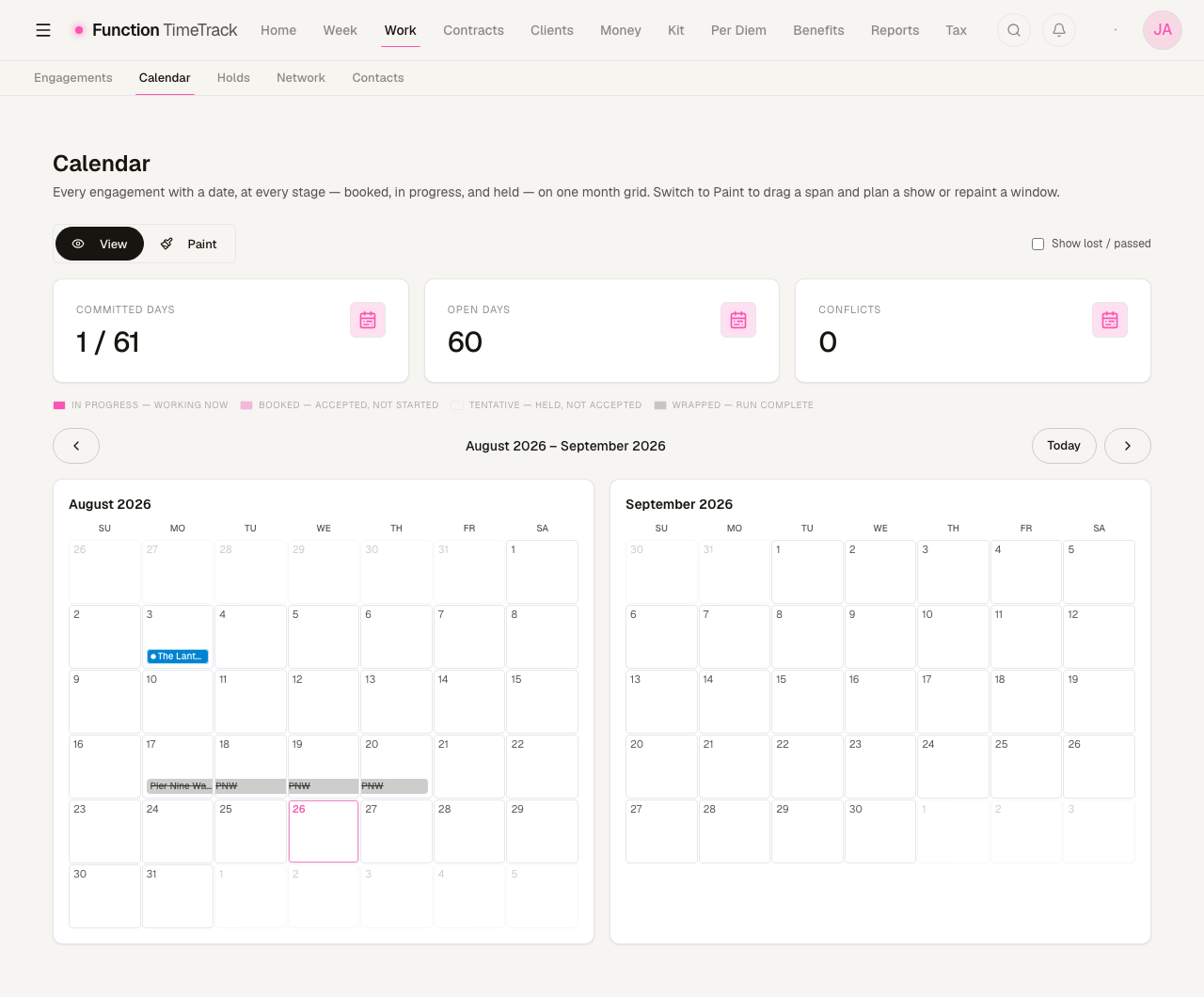
The grid opens on the current month and the one after. An engagement further out is real but off-screen — page forward before concluding a date is free.
Paint mode
Switch to Paint (or open /work/calendar?mode=paint) and you can drag a span across the
grid to sketch a window. Releasing the drag opens a short dialog that creates a planned
engagement — a lightweight thing with a name and two dates, not a full show with paperwork.
See Work Plans for what happens next: pricing it, forecasting it, and comparing the forecast against what you actually earned.
Network & Contacts
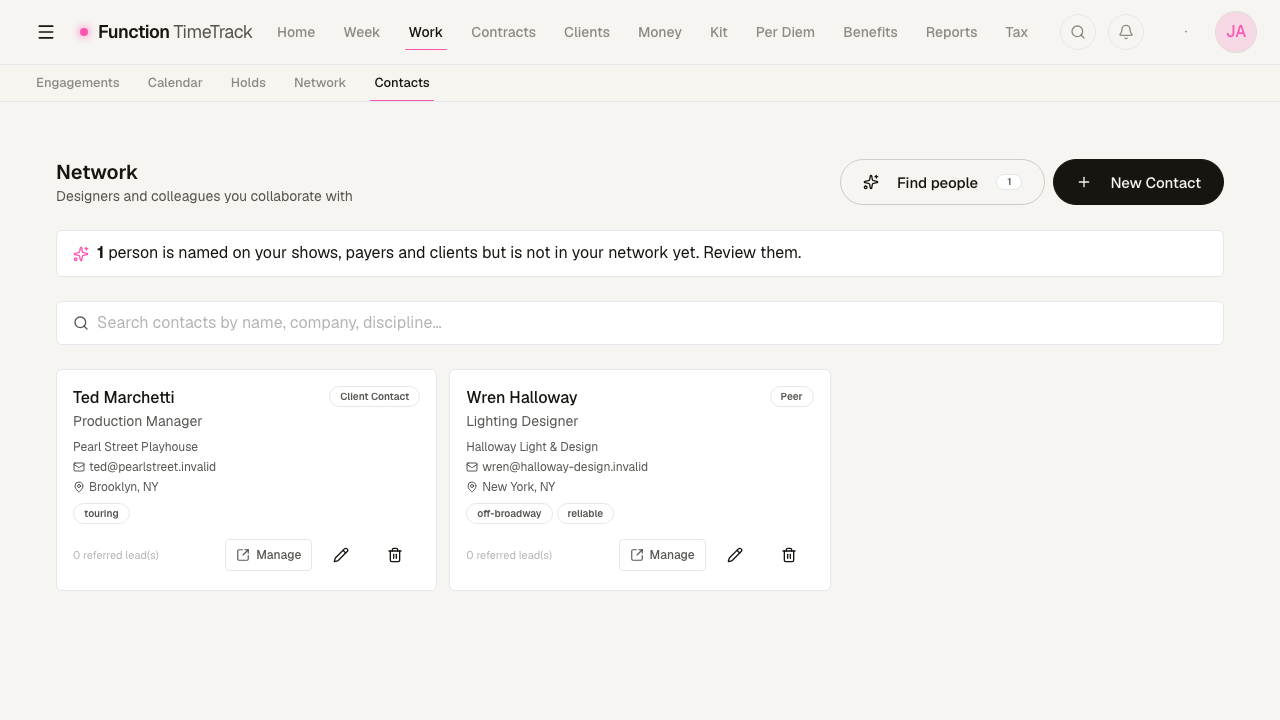
Contacts is the directory: the designers, PMs, and colleagues who hire you, refer you, or take your overflow. Network is the read-back on it — your referral hit-rate, the turned-away dollars you routed to other people, your active two-way connections, and a leaderboard of your top connectors.
Find people
You have already typed most of your network into the app without meaning to — as show clients, as payers, as contacts on a production. Find people counts those and offers them: "1 person is named on your shows, payers and clients but is not in your network yet."
It is a suggestion, not an import. Nothing is added until you review it, so a client name that happens to be a company rather than a person never quietly becomes a contact.
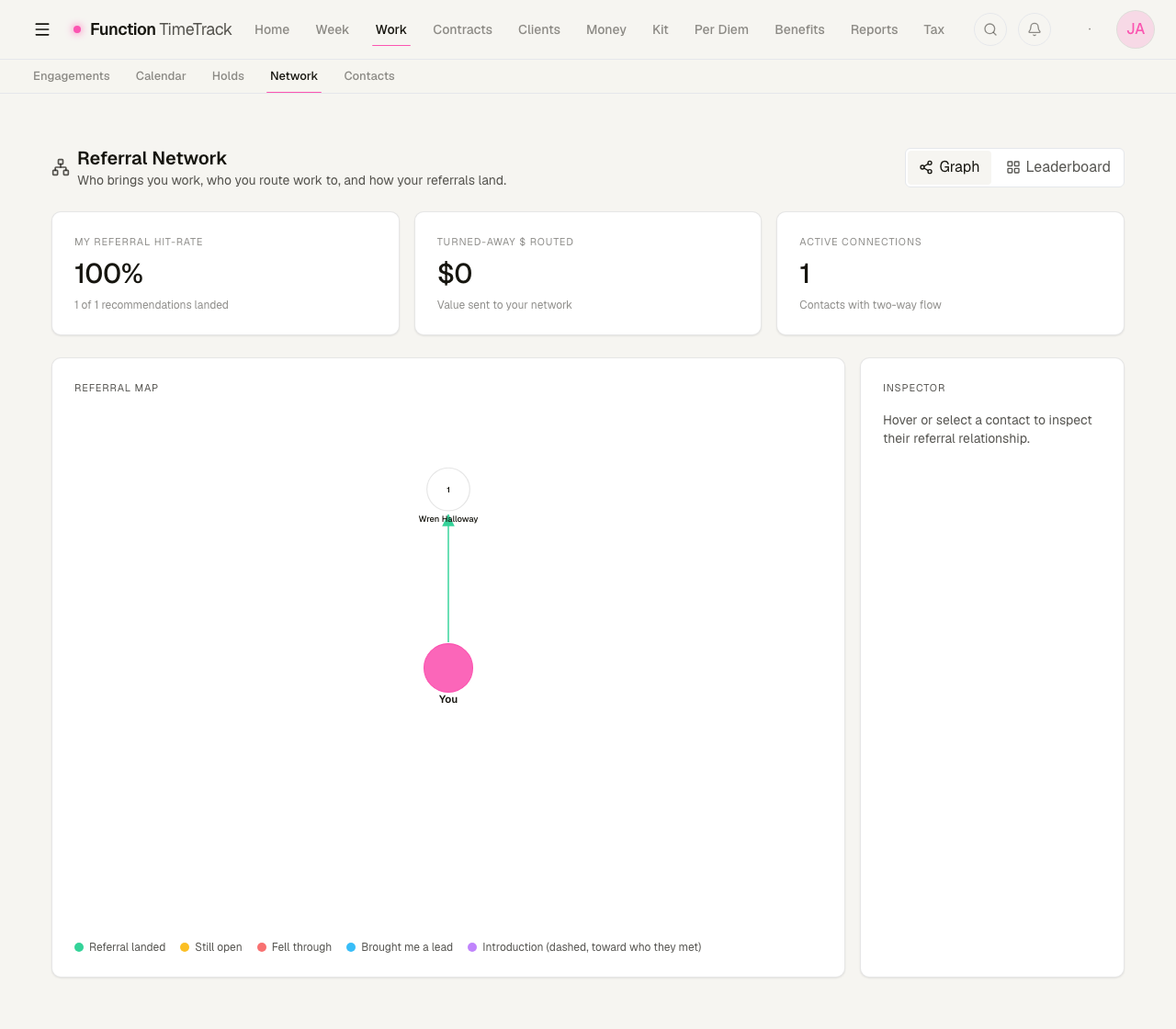
Turned-away $ routed reads $0 until the leads you passed on carry a figure. It totals the Est. revenue on the jobs you sent elsewhere — so a referral of a lead with no forecast on it counts toward your hit-rate and contributes nothing to the dollar figure. Both statements are true at once, and the screenshot above shows exactly that case.
The referral ledger lives on the contact
Open a contact from Contacts and their profile carries the relationship in both directions:
- Referrals — jobs you sent them and leads they brought you, each row with its outcome and an Adjust / Remove control, plus a reciprocity readout with its definition stated inline.
- Introductions — who you connected to whom.
- Coverage / subs — who covered for you, and who you covered for.
Add a referral with + on the section, pick the direction and the outcome, and it lands on both sides of the relationship.
Contacts you add here power the Referred by and CRM contact pickers on a lead. Add your key people early so those pickers aren't empty when you're in a hurry.
Tips & gotchas
- Title is the only required field on a lead. Everything else is optional — but the more you fill in, the more the counts, the calendar, and the network numbers are worth.
- Est. revenue is what totals. Rate × days is not auto-computed.
- Holds need dates to appear on the calendar. A lead with no hold window and no project dates won't be painted anywhere.
- A date overlap is a prompt, not a decision. Two soft pencils will sit on top of each other on the grid. That's your cue to release one, firm up the other, or renegotiate.
- Pass and Lost are different facts. Use the right one — the network read-back depends on it.
- Stage lives in the URL. Copy the address after picking a stage to send someone straight to the exact view.
Contracts & the pay engine
How contracts, riders, work types, and premiums layer together to price a week of work.
The hold desk
First refusal versus hold, hold rank, release-by dates, the collision screen that shows which engagements want the same days, and the ledger for money that is not worked time.