Settings — data, bank cards & vocabulary
Three settings surfaces that are easy to miss — connecting a bank card so charges import themselves, managing the contact-role words your workspace uses, and the data-management page, most of which is honestly not built yet.
Settings has a left rail grouped into Account, Workspace, Connections and Data & tools. This page covers three of them that nothing else in the guide reaches. For signing in, 2FA and inviting people, see Getting started; for QuickBooks, see QuickBooks.
Bank cards
Settings → Connections → Bank cards connects a card so its charges arrive in the app instead of being typed off a statement.
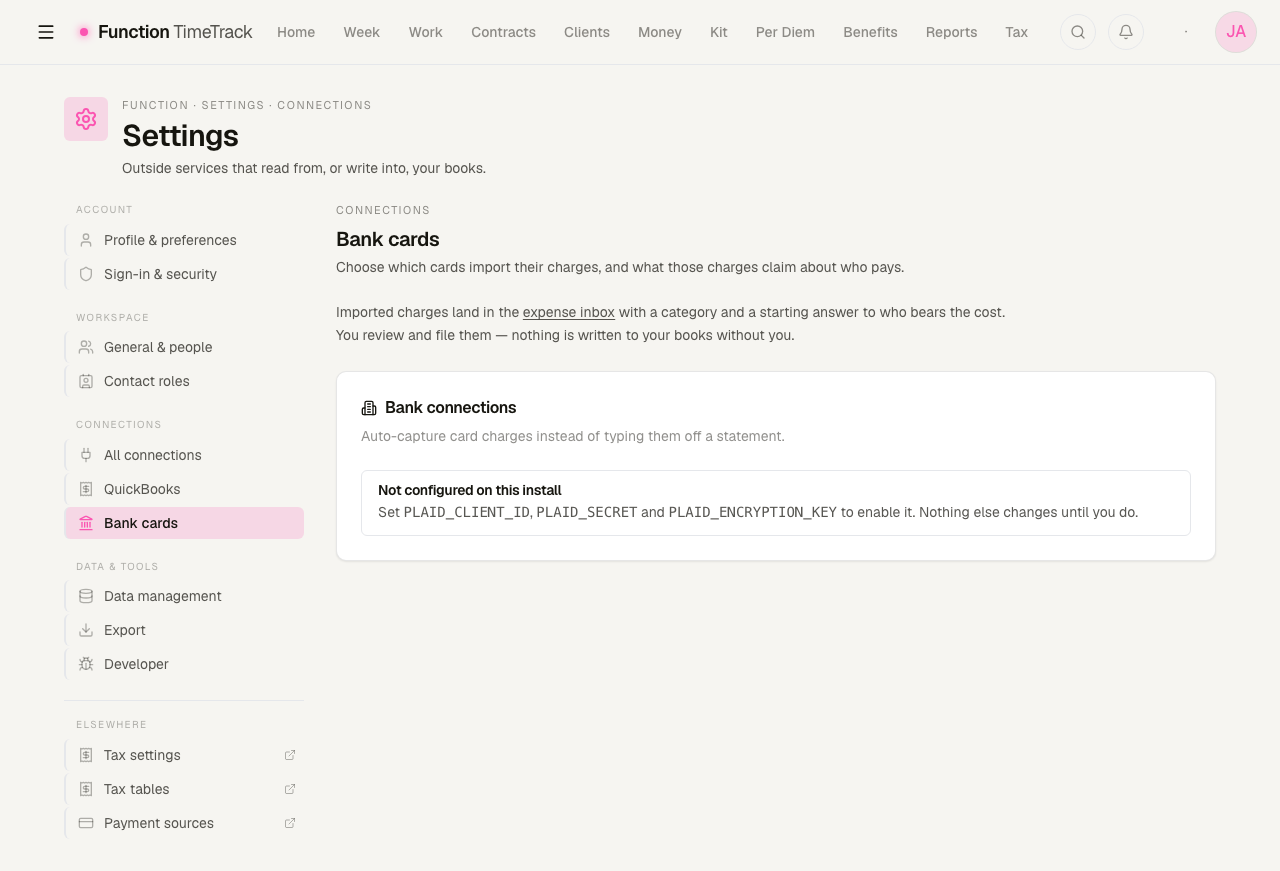
Imported charges land in the expenses review queue with a category and a starting answer about who bears the cost. You review and file them — nothing is written to your books without you.
Marking what each card is
Once a bank is connected, each account on it gets one of three settings, and this is the control that matters most:
| Setting | What happens |
|---|---|
| Business — import everything | Every charge arrives for review |
| Mixed — import, triage the personal rows | Every charge arrives; you rule out the personal ones |
| Personal — never import | Nothing from that account is written to this app at all |
Personal means personal
A personal account's transactions are never written to the app — not imported and hidden, not stored and filtered. Until at least one account is marked Business or Mixed, the panel says "Nothing is being imported yet" rather than sitting silently.
Each importing account can also carry a default billable flag, so charges on a card you use for one client arrive already marked billable.
When a connection needs attention
- Needs attention — the bank wants you to sign in again. Nothing imports until you do; your existing rows are untouched. The Reconnect button re-authenticates the same connection, and the feed picks up from where it stopped rather than re-importing.
- No new transactions in N days — a stale-feed warning. It may just be a quiet stretch, but the app raises it rather than letting you assume.
The card header shows the last sync, how many transactions have been imported, and how many accounts are importing.
Contact roles
Settings → Workspace → Contact roles is the word list your show's People roster and the lead editor suggest from — LD, ALD, PM, GM, Programmer, Production Electrician, Payroll.
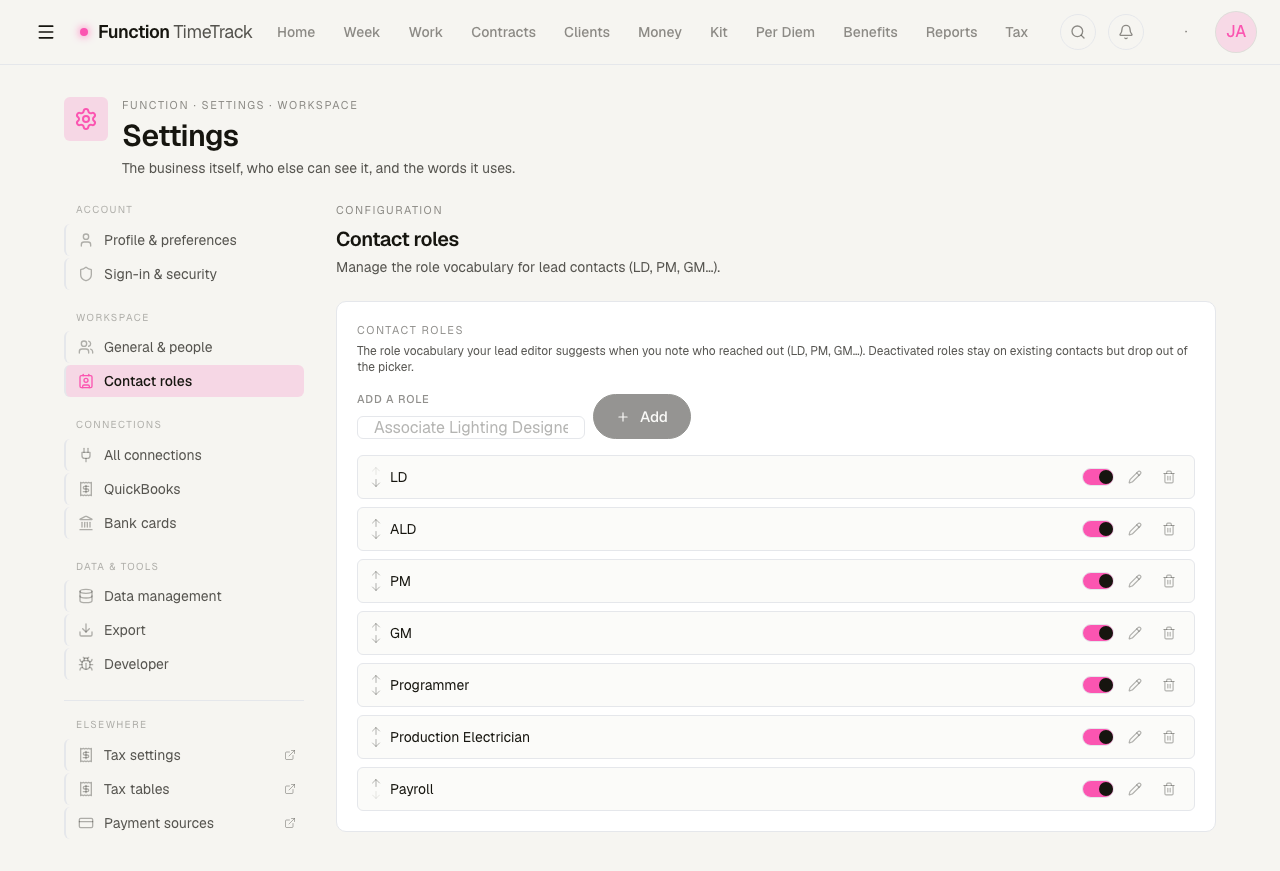
It is your list, not a hardcoded one. You can add, rename inline, reorder, deactivate, and delete.
Deactivate rather than delete
A deactivated role stays attached to the contacts already using it and simply drops out of the picker. Deleting removes the word entirely. If a role has served its purpose but is on existing records, deactivate it.
The order you set is the order the picker offers, so putting the three roles you actually record at the top is worth thirty seconds.
Data management
Settings → Data & tools → Data management. Read the subtitle before you plan around this page: "Most of this is not wired up yet — each tab says which."
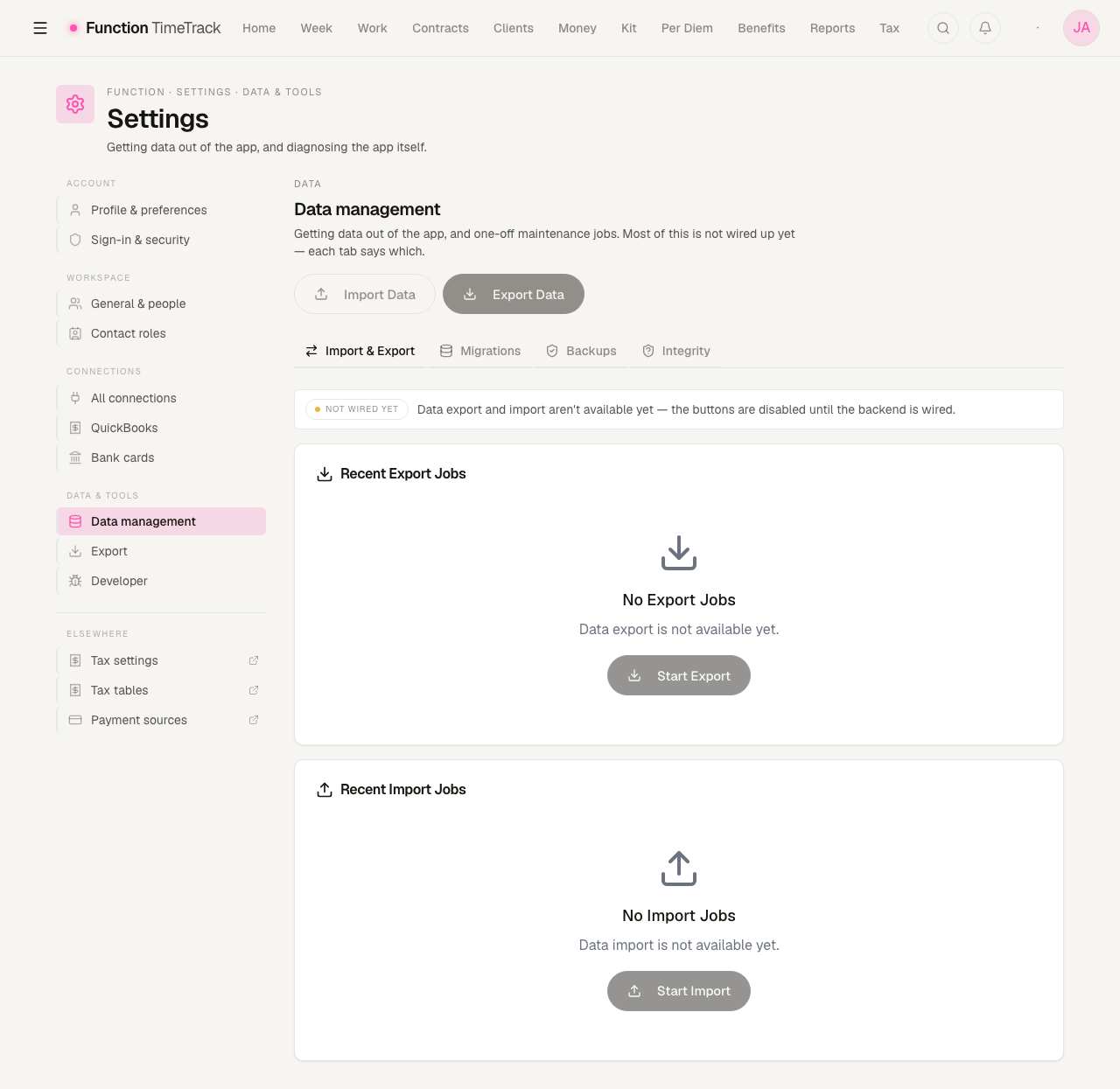
Four tabs:
Import & Export — not built
Disabled, and captioned as such. There is no backend for it. The separate Export page in the
rail (/settings/data/export) lets you preview what the options will be — format (CSV, Excel,
JSON), date range, and which record types to include — with the Export button disabled behind a
"Not available yet" notice. It is a preview of a feature, not a feature.
If you need your data out today
Use the exports that do work: the PDF Export tab on Reports — which really does generate an earnings, per-production or penalty/compliance PDF and hand it to you — the per-week timesheet PDFs, and the invoice PDFs. There is no whole-workspace export yet.
Not the Export All button on the Timesheets page. It renders enabled and has no click handler at all, so it does nothing when pressed.
Migrations — real, and to be used carefully
The one tab with a working backend. It runs one-off maintenance jobs over your existing records — the current one populates rate calculations on time entries that predate them.
It offers a dry run first, which reports how many entries would change without writing anything. Run that, read the number, and only then run it for real.
Backups — a statement, not a control
There used to be backup-schedule and data-retention forms here. They were removed, because they saved settings that nothing read: no backup ever ran and no record was ever aged out. A control that persists a preference and does nothing is worse than no control, because you stop watching.
What is there now is a plain statement: your records live in a hosted PostgreSQL database, that database's own backup and point-in-time-recovery settings are what protect them, and the app cannot read those settings so it will not tell you what your recovery window is. Check it in the database console.
It also states that there is no automatic clean-up — the app never deletes, archives or ages out your records.
Integrity — not built
Disabled, captioned, no backend.
Developer tools
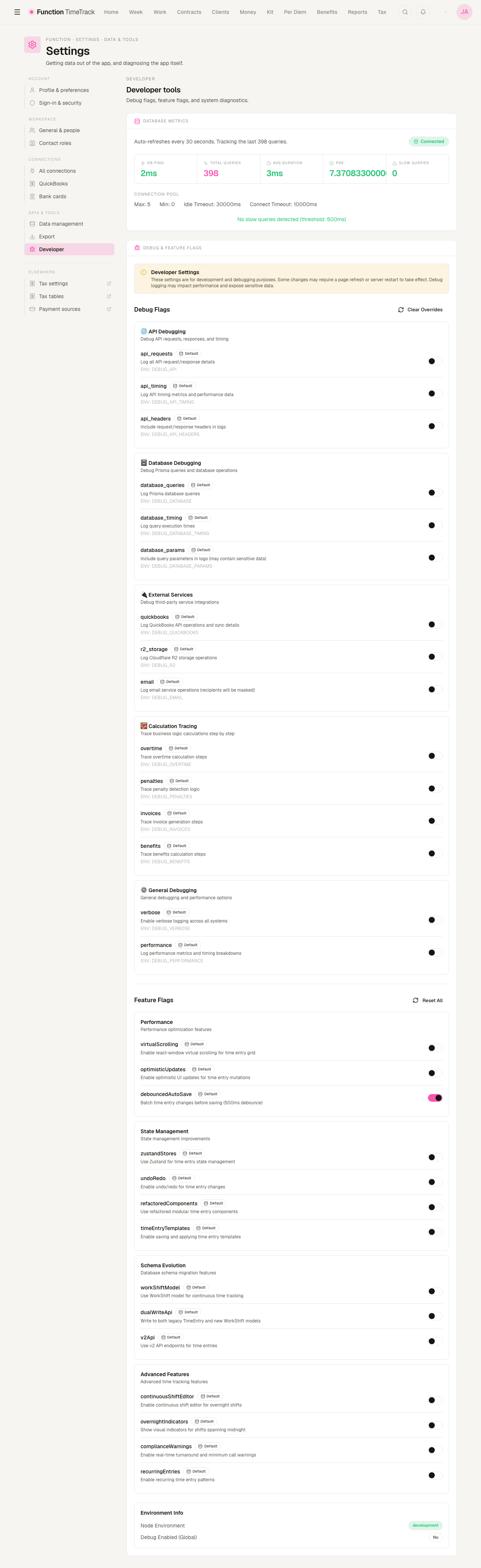
Settings → Data & tools → Developer. It looks internal, and it is described here anyway, because it is not hidden: it is a permanent, ungated entry in the settings rail with a plain-language blurb next to Data management and Export. A reader will find it whether or not anybody documents it, and an undocumented page that looks like a control panel is how people break things.
Database metrics
Refreshes every 30 seconds. DB ping, total queries tracked in a rolling buffer, average duration, p95, and a slow queries count against a 500 ms threshold, plus the connection pool's configured limits.
This is a health readout, not a control — there is nothing here to change. It is genuinely useful for one question: is the app slow, or is my connection slow?
This panel needs Owner or Manager. A Contributor or Read-only member reaches the page — the route itself is not gated — and the metrics panel then fails to load for them. That is a rough edge, not a permissions leak: the data is refused correctly, it is just refused after the page has already drawn.
Debug flags
Around fifteen switches grouped into API debugging, database debugging, external services, calculation tracing and general debugging. Turning one on makes the app log more about what it is doing.
A debug flag changes logging, not behaviour
These do not change a single calculated figure. overtime, penalties, invoices and benefits
under Calculation tracing make the engine narrate its steps into the log — they do not alter
what it computes. Nothing here can make your pay come out differently.
The overrides live in your own browser. They do not apply to anyone else in the workspace, and Clear overrides puts every one of them back to its default.
Some flags are marked as logging sensitive material — database_params includes query parameters
and api_headers includes request headers. Leave those off unless you are actively chasing
something, and turn them back off afterwards.
A flag showing a padlock is locked by an environment variable on this install and cannot be toggled from the browser.
Feature flags
Toggles for in-flight work: virtual scrolling, optimistic updates, Zustand stores, undo/redo, alternative time-entry models, overnight indicators, recurring entries.
These are development switches, not preferences
Unlike debug flags, a feature flag can change how the app behaves — it is how half-finished work is kept out of your way. Flipping one turns on something that is not finished. If a screen starts behaving oddly after a visit here, come back and Reset all.
At the foot, Environment info states the Node environment and whether global debugging is on.
What else is in the rail
- Profile & preferences, Sign-in & security — see Getting started.
- General & people — the workspace itself and who else can see it.
- All connections, QuickBooks — see QuickBooks.
- Developer — above.
- Elsewhere — shortcuts out to tax settings, tax tables and payment sources, which live outside settings but are configuration in spirit.
There is no settings landing page
/settings does not render anything of its own — it forwards to Account → Profile. The old
overview was a grid of link cards that duplicated the rail beside it, so it was removed rather
than redrawn. Every route and group heading is already on screen in the rail.