Taxes & withholding
Set up your filing status, state, and rates so Function Timetrack can estimate the tax withheld (W-2) or set aside (1099) on every paycheck — and read those numbers with confidence.
Function Timetrack doesn't file your taxes — it estimates them, so the take-home and set-aside numbers you see on every paycheck are honest. This page shows you how to configure your tax settings once, and how to read the withholding lines the app derives from them.
Estimates, not tax advice
Every number in the app is a planning estimate built from your settings and what you've logged. The
built-in state rates are simplified approximations for entertainment-industry income, not
authoritative tables — you always reconcile against your real paystub. Dollar figures here are
placeholders ($X); your real numbers come from your contract, your income, and your settings.
What your tax settings drive
Two things depend on getting these settings right:
- The Gross → net card on your paychecks — how much is withheld (W-2) or should be set aside (1099) for federal, state, local, and payroll tax. See How pay is calculated for how that card reads.
- Quarterly estimate planning — how much to reserve for estimated tax payments.
If your state isn't set, the app won't silently pretend tax is $0 — it flags the gap instead. So the single most valuable thing you can do is fill in your state of residence and filing status.
Set up your tax settings
Open Tax → Settings from the top navigation. The page is one long form with a Save Settings button in the top-right that stays disabled until you actually change something — so you can explore freely and nothing saves until you click Save.
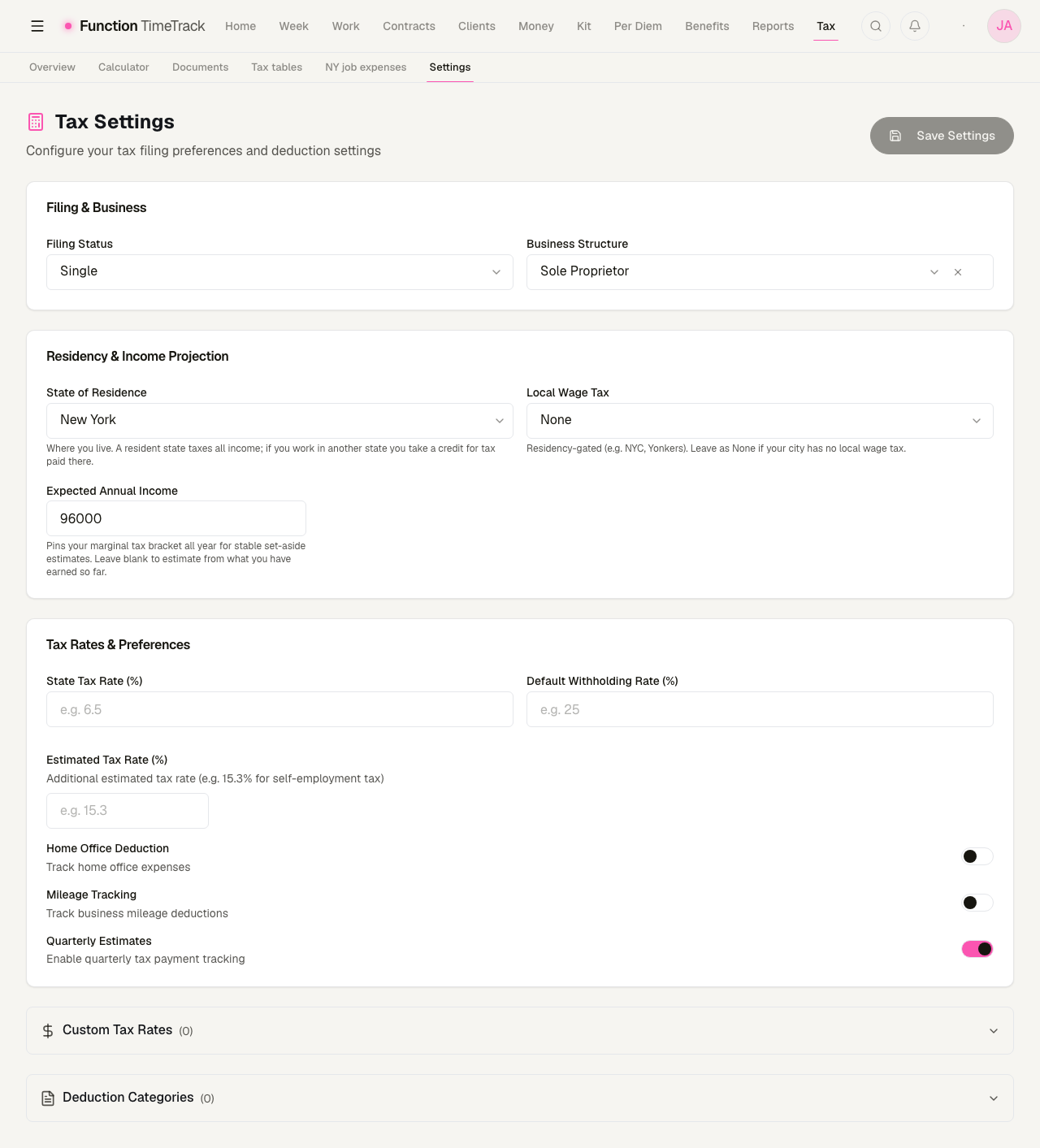
Filing & Business
- Filing Status — Single, Married Filing Jointly, Married Filing Separately, or Head of Household. This picks your standard deduction and which federal brackets apply, so it changes every federal withholding number.
- Business Structure — Sole Proprietor, LLC, Corporation, or S-Corp. Optional; a label for how you're organized. Leave it blank if it doesn't apply.
Filing status is load-bearing
Filing status isn't cosmetic — the wrong one skews your federal estimate all year. Set it to match the return you'll actually file.
Residency & Income Projection
This is the section that makes state and local numbers accurate.
- State of Residence — where you live. Searchable list of all 50 states plus DC. A resident state taxes all your income; if you work in another state, the app applies a resident credit so you're not double-taxed (more below).
How deep the state numbers go
All 50 states and DC are selectable, but they are not all modelled to the same depth. New Jersey and New York have real progressive brackets by filing status, plus the dollar-level resident-credit mechanic for the NJ-resident / NY-work case. Every other state currently uses a single flat effective rate — fine for planning a set-aside, not a filing input. Each number tells you which basis it used.
- Local Wage Tax — residency-gated city wage taxes: New York City, Yonkers, Philadelphia, Detroit, St. Louis, and Wilmington, DE. Leave it on None if your city has no local wage tax. This is keyed to where you live, not where you work.
- Expected Annual Income — optional. Enter it to pin your marginal tax bracket for the whole year, which keeps your set-aside estimates stable. Leave it blank and the app estimates your bracket from what you've earned so far.
Why 'Expected Annual Income' steadies the numbers
Freelance income is lumpy. Without an expected-annual figure, a big week can annualize to a scary bracket and a slow week to a tiny one. Pinning your expected income gives the marginal-rate badge a stable anchor so it stops swinging week to week.
Until your state is set, the page says so
With State of Residence empty the card carries a highlighted prompt — set your state of residence so we can estimate state tax accurately — and every state figure downstream reads as unknown rather than as zero. Once it is set the prompt disappears, which is the quickest way to confirm the setting actually saved.
Set your state or the app will tell you
Until you pick a state of residence, the page shows a highlighted prompt at the top of this section, and paycheck cards show a "set your state" link instead of a state number. That's deliberate — a missing state is never quietly treated as $0 tax.
Tax Rates & Preferences
- State Tax Rate (%) — an optional manual override. Leave it blank to let the app resolve your state rate from your state of residence and work state. Enter a value only if you want to force a specific effective rate (for example, one taken from your own paystub).
- Default Withholding Rate (%) — a fallback flat withholding rate. You type a whole percent
(e.g.
25); the app stores it as a fraction under the hood. - Estimated Tax Rate (%) — an additional rate layered on for estimates — commonly 15.3% for self-employment tax on 1099 work.
- Home Office Deduction — toggle on to track home-office expenses. Turning it on reveals a Home Office Details card where you enter Office Square Feet (used for the simplified deduction of $5/sq ft, capped at 300 sq ft).
- Mileage Tracking — toggle on to track business mileage deductions (enables the standard mileage rate).
- Quarterly Estimates — toggle on to enable quarterly estimated-payment tracking.
Save
Click Save Settings in the top-right. If you didn't change anything, the app tells you there's nothing to save. A toast confirms success.
Blank means 'let the app decide'
For State Tax Rate and Default Withholding Rate, empty is a real choice — it tells the app to resolve the rate for you instead of forcing a fixed number. Only fill these in when you specifically want to override.
How the app resolves your state (and local) tax
You don't have to understand this to use the app, but it explains the numbers you'll see.
The state resolver picks a rate in this order, and never lands on $0 just because something was left unset:
- Your explicit override, if you entered a State Tax Rate.
- The Default Withholding Rate from settings, if set.
- The work-state rate — where the income was earned.
- Your residence-state rate — the fallback if there's no work state on the income.
Resident credit (no double tax). When you live in one state and work in another and both tax income, the app charges the higher of the two effective rates — modeling the way your resident state credits you for tax paid to the work state. You pay the work state; your home state tops up only if its rate is higher.
Genuine no-tax states are resolved, not missing. If you live somewhere with no state income tax (for example TX, FL, WA, NV, TN, and similar), the state row reads "no income tax" — that's a real, resolved answer. Only a truly unset state shows the "set your state" prompt.
Local wage tax follows where you live
NYC, Yonkers, and the other local wage taxes are residency-gated. If you live in NYC you pay the NYC rate even on out-of-town work; if you don't, leave Local Wage Tax on None.
How withholding is estimated (W-2 vs 1099)
The single biggest fork is your tax class, which comes from the income itself, not this page:
- W-2 (employee) — the amounts shown were withheld for you. The card shows federal, state, local, and FICA (Social Security + Medicare).
- 1099 (self-employed / loan-out) — nothing is withheld, so the card shows what to set aside, and it includes self-employment (SE) tax in place of FICA.
Under the hood the estimate annualizes your paycheck by pay frequency, subtracts your standard deduction (from your filing status), runs it through the progressive federal brackets, and pro-rates the result back to the period. Then it adds state, local, and payroll tax.
FICA / payroll tax details
- Social Security — 6.2%, capped at the annual wage base.
- Medicare — 1.45%, uncapped.
- Additional Medicare — 0.9% on wages above $200,000 (mirroring how employers withhold it; you reconcile the exact filing-status threshold on your return).
Per-employer Social Security (why two jobs can each cap)
This one trips people up, so the app models it correctly. Each W-2 employer withholds Social Security independently up to the annual wage base. If you work for two employers in a year, each one tracks its own cap — so their combined SS withholding can exceed a single-cap amount. You're not being overcharged permanently: you recover the excess on your 1040. The app attributes each paycheck's wages to the right employer (by payment source) so the estimate reflects this instead of flatly charging one blended rate.
Multiple loan-outs / employers
Income with no payment source attached folds into a single "Unassigned employer" bucket rather than being dropped. Attributing income to the right payment source keeps per-employer Social Security accurate — worth doing if you juggle several employers.
Effective rate vs marginal rate
The paycheck card headlines the effective rate (total withheld ÷ gross) because that's what actually came out of this money. It also shows a smaller marginal badge — your next-dollar rate — anchored to your stable annual basis (your Expected Annual Income, when set) rather than this one week times 52, so a big week doesn't flash a top-bracket number.
Big weeks over-withhold, slow weeks under-withhold
Withholding is applied per period, so a spike week's effective rate looks high and a quiet week's looks low. It evens out on your annual return — don't panic at a single-check rate.
What's above the line vs below it
- Pre-tax 401(k) reduces your federal and state taxable income — but stays in the FICA base (payroll tax is still charged on the full gross). It shows as its own pre-tax line.
- Union dues, PAC contributions, and similar are below the line: they reduce your take-home but not your taxable income, so they never change your tax withholding.
See How pay is calculated for the full gross → net waterfall.
Advanced: custom rates & deduction categories
At the bottom of the page are two collapsible sections. Most people never need them — the built-in resolver handles standard cases.
Custom Tax Rates
Expand Custom Tax Rates → Add Tax Rate to record a specific rate. Each entry has a Jurisdiction (e.g. "California," "Federal"), a Type (Federal, State, Local, Social Security, or Medicare), a Rate (%), an Effective From date, an optional description, and an Active/Inactive toggle. Use this when you need to pin a rate to a specific jurisdiction and date.
Deduction Categories
Expand Deduction Categories → Add Category to organize deductions. Each has a Name, a Type (Business Expense, Personal Deduction, Depreciation, or Other), an optional description, an optional Maximum Amount, a Percentage-based toggle, and an Active toggle.
The rest of the Tax section
Settings is one of six pages under Tax. The others read the numbers back.
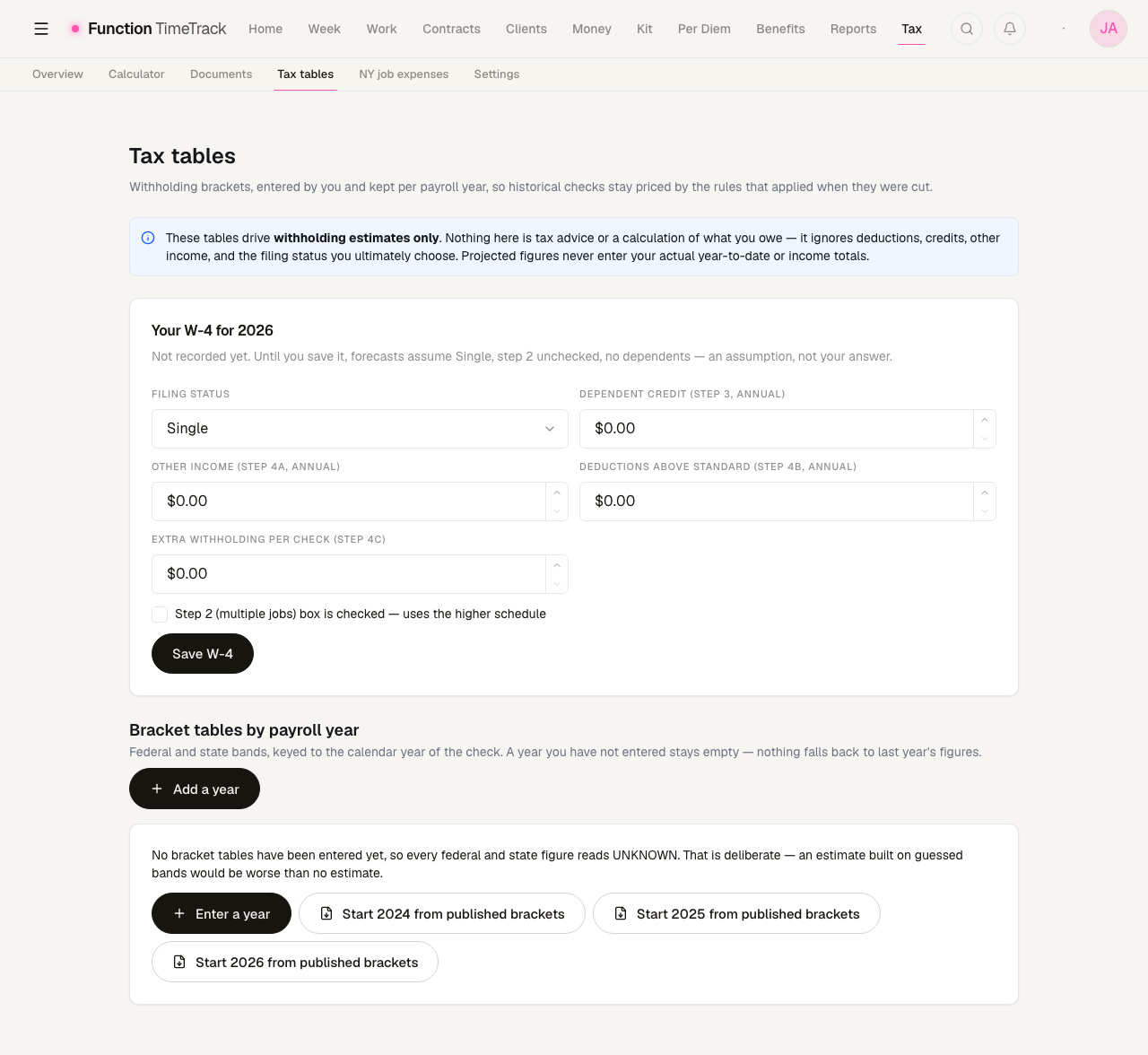
Tax tables — /tax-tables
Every federal and state figure the app estimates comes from a bracket table keyed to a payroll year, because a cheque is priced by the calendar year it was dated in — 2024, 2025 and 2026 have different bands, and a 2024 cheque must never be priced with 2026's.
A year you have not entered stays empty, and every figure that would have depended on it reads UNKNOWN. Nothing falls back to last year's numbers. That is deliberate: an estimate built on guessed bands is worse than no estimate.
To fill a year you have two routes, both on the page: Enter a year to type the bands yourself, or Start <year> from published brackets to seed it from the published federal schedule and adjust from there.
Above the tables sits Your W-4 for the year — filing status, the Step 2 multiple-jobs box, and the Step 3 dependent credit, Step 4a other income, Step 4b deductions and Step 4c extra withholding amounts. Until you save it, forecasts assume Single, step 2 unchecked, no dependents — and the page says so, so the assumption is never mistaken for your answer.
Withholding estimates only
The disclaimer at the top of this page is the real thing, not boilerplate. These tables drive withholding estimates — they ignore deductions, credits, other income, and the filing status you ultimately choose, and projected figures never enter your actual year-to-date or income totals. Nothing here is tax advice or a calculation of what you owe.
Overview — /tax-overview
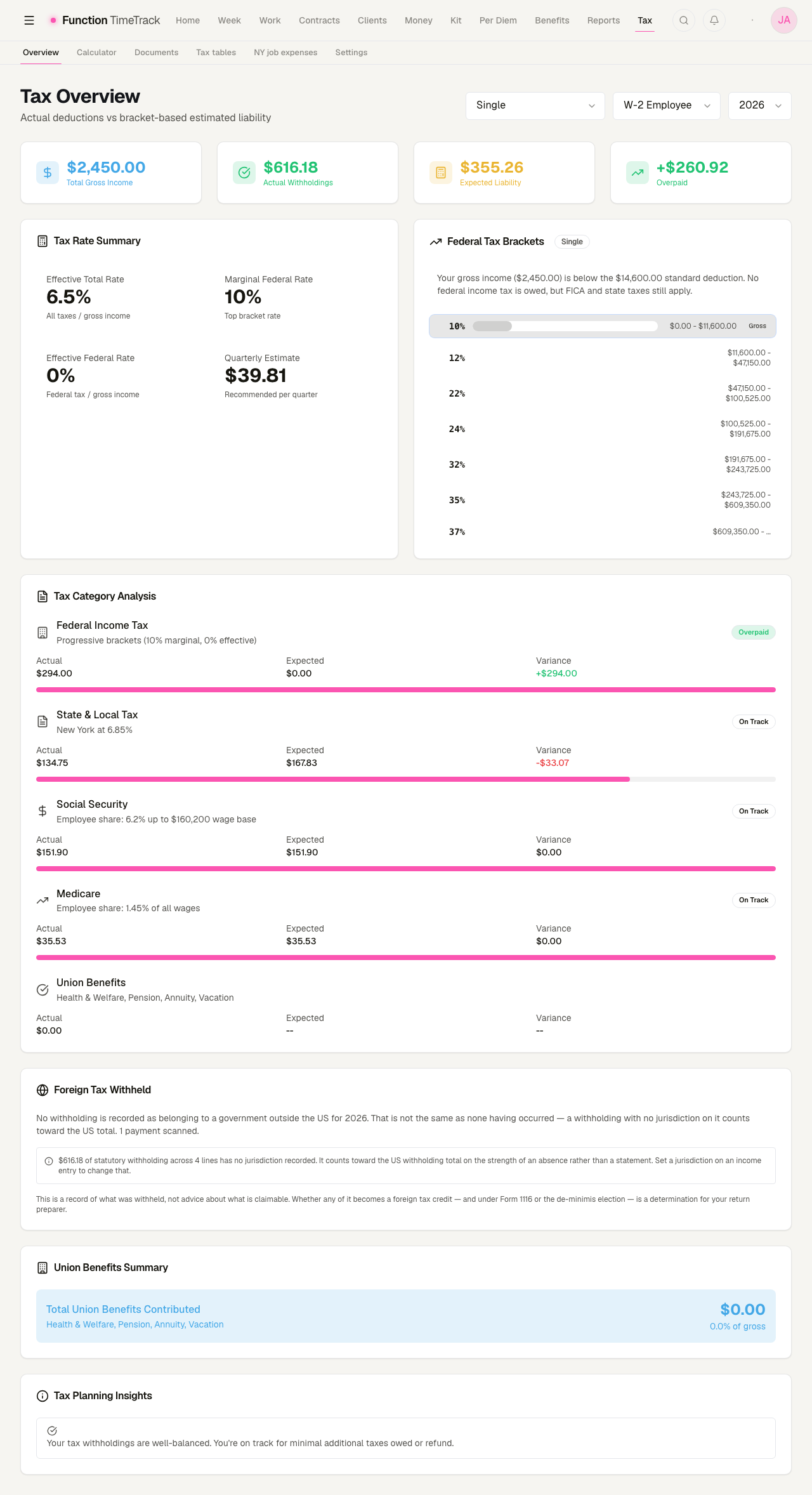
Actual deductions vs bracket-based estimated liability, for one year, one filing status and one employment type. Four headline tiles — total gross income, actual withholdings, expected liability, and the over/under between them — sit above a Tax Rate Summary (effective total rate, marginal federal rate, effective federal rate, and a recommended quarterly estimate) and the federal bracket ladder with your position on it marked.
Below that, Tax Category Analysis walks federal income tax, state and local, Social Security, Medicare and union benefits, showing Actual, Expected and the Variance for each, badged on track or underpaid. A Foreign Tax Withheld panel records withholding attributed to a government outside the US — a record of what was withheld, explicitly not advice about what is claimable.
Union fund contributions read $0 here, and that is usually right
The Union Benefits row and the Union Benefits Summary count money withheld from your cheque. On agreements where Health & Welfare, Pension and Annuity are contributed by the employer on top of your gross — which is most IATSE agreements — nothing comes out of your cheque for them, so the row is correctly zero. Read those contributions on Benefits, not here.
Calculator — /tax-calculator
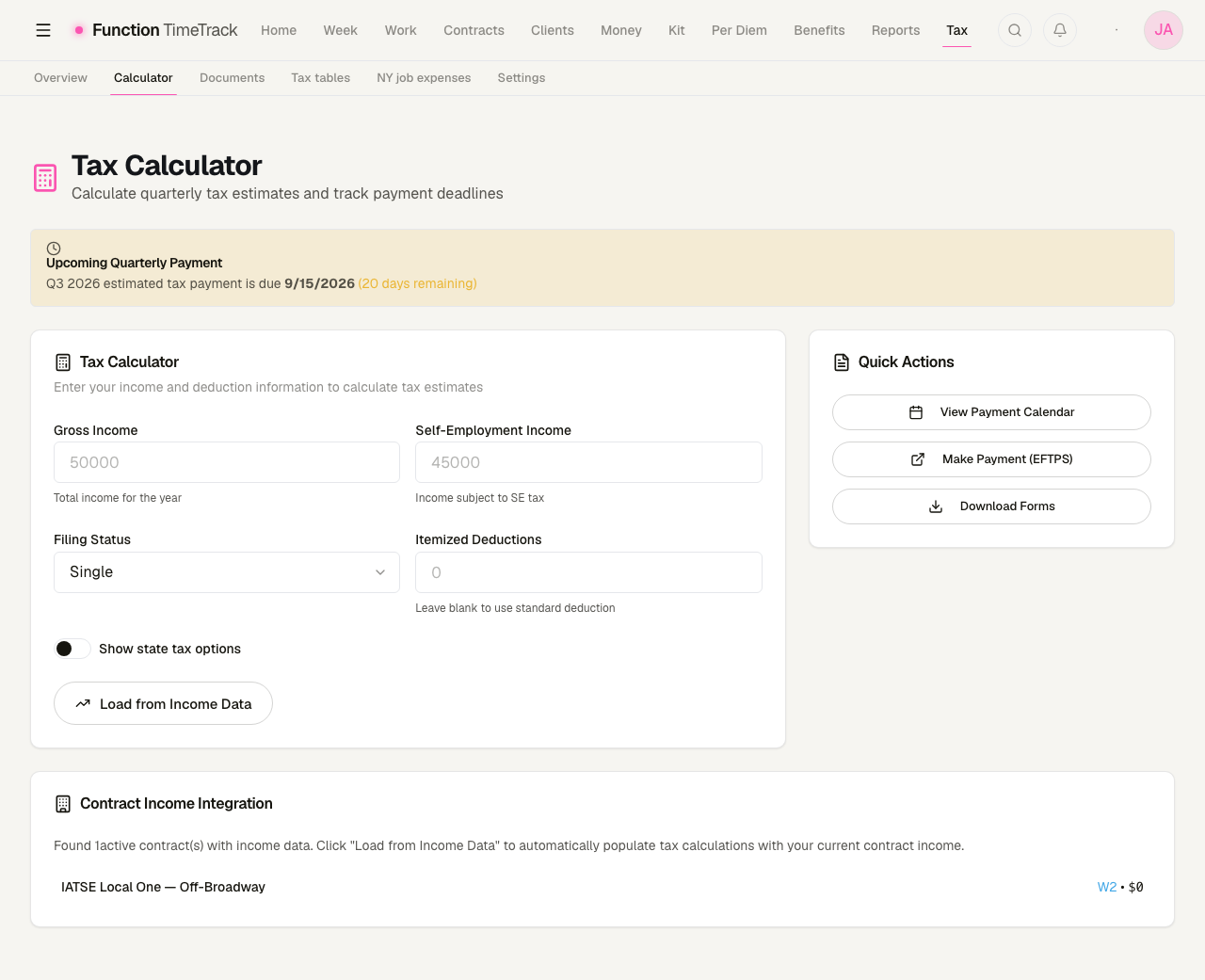
A scratchpad for quarterly estimates. Type a gross income, self-employment income, filing status and itemised deductions and it estimates the quarter; Load from Income Data fills the inputs from the contracts and income you have already recorded, and Show state tax options adds the state side.
A banner at the top names your next quarterly deadline and how many days remain, and the Quick Actions panel links out to the payment calendar, to EFTPS, and to the forms.
Documents — /tax-documents
The checklist of forms you are waiting on, per tax year: total documents, how many are received and pending, and the W-2 and 1099 counts. Each row names the document type, the company that issues it, the contract it belongs to, its amount once known, and its status with an expected date.
Above the list, Expected tax forms groups your income by the legal entity that paid it — the forms you should receive — so you can compare what is owed to you against what has arrived.
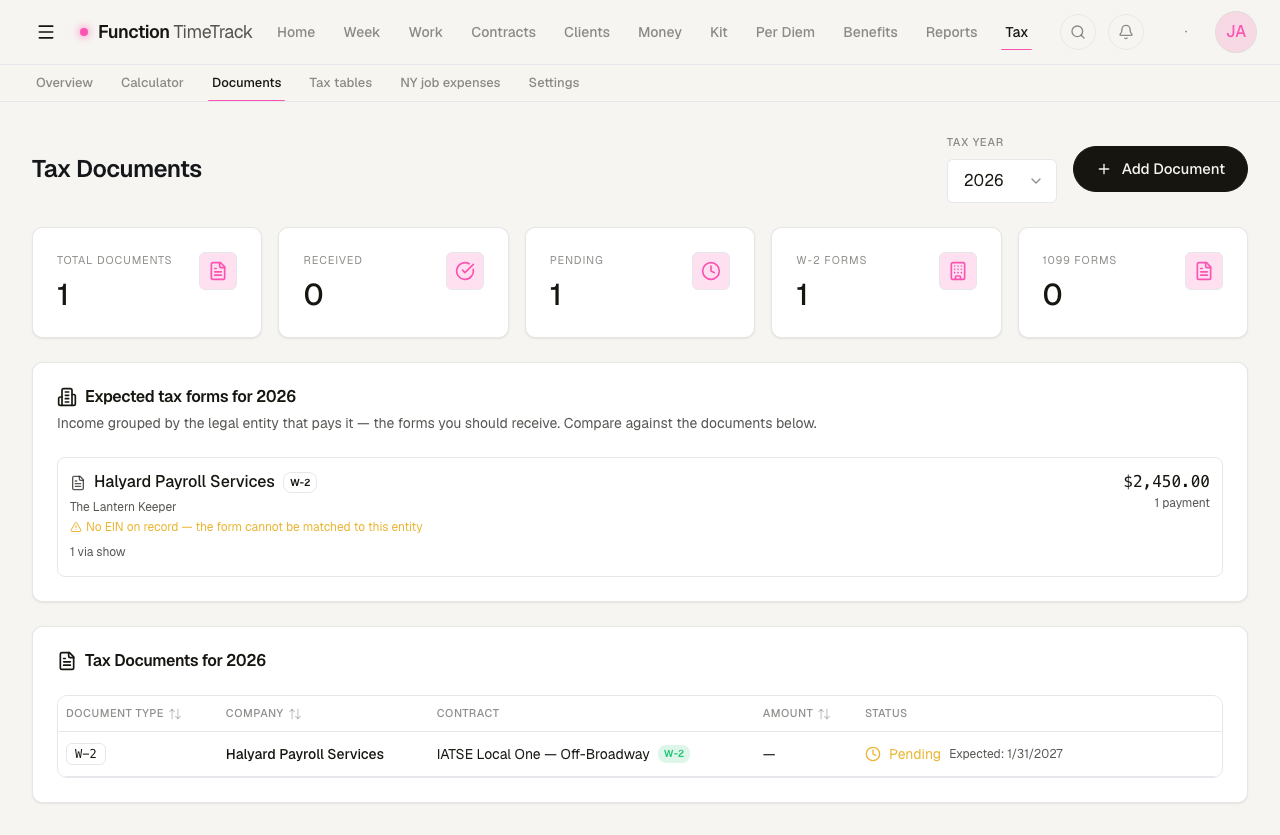
'No payer on record' is a data gap, not a bug
The expected-forms panel groups by the payer entity set on the payment, its phase, or its show. If none is set, the money is bucketed under No payer on record and cannot be reconciled against a document — the panel says so and names the show to fix. Set the payer on the production and the money moves into the right group.
NY job expenses — /tax-ny-deductions
Union working dues and unreimbursed work costs, shaped like the IT-196 job-expense block a preparer works from. This block is dead federally and dead in New Jersey; New York is the only place it is still worth anything, which is why the page is scoped to it and named for it.
You pick a tax year and optionally type a federal AGI. The AGI is deliberately transient — used for the calculation and never stored. An AGI belongs to a filed return, and storing one on a page that keeps re-rendering it is how a superseded figure gets copied into a later year.
Above the form, Union dues paid totals the year's dues and splits them into what was withheld from pay and what you paid directly. Below it, the Form IT-196 block lays the figures out on their real line numbers — 21 through 28, plus the addition adjustment on line 44.
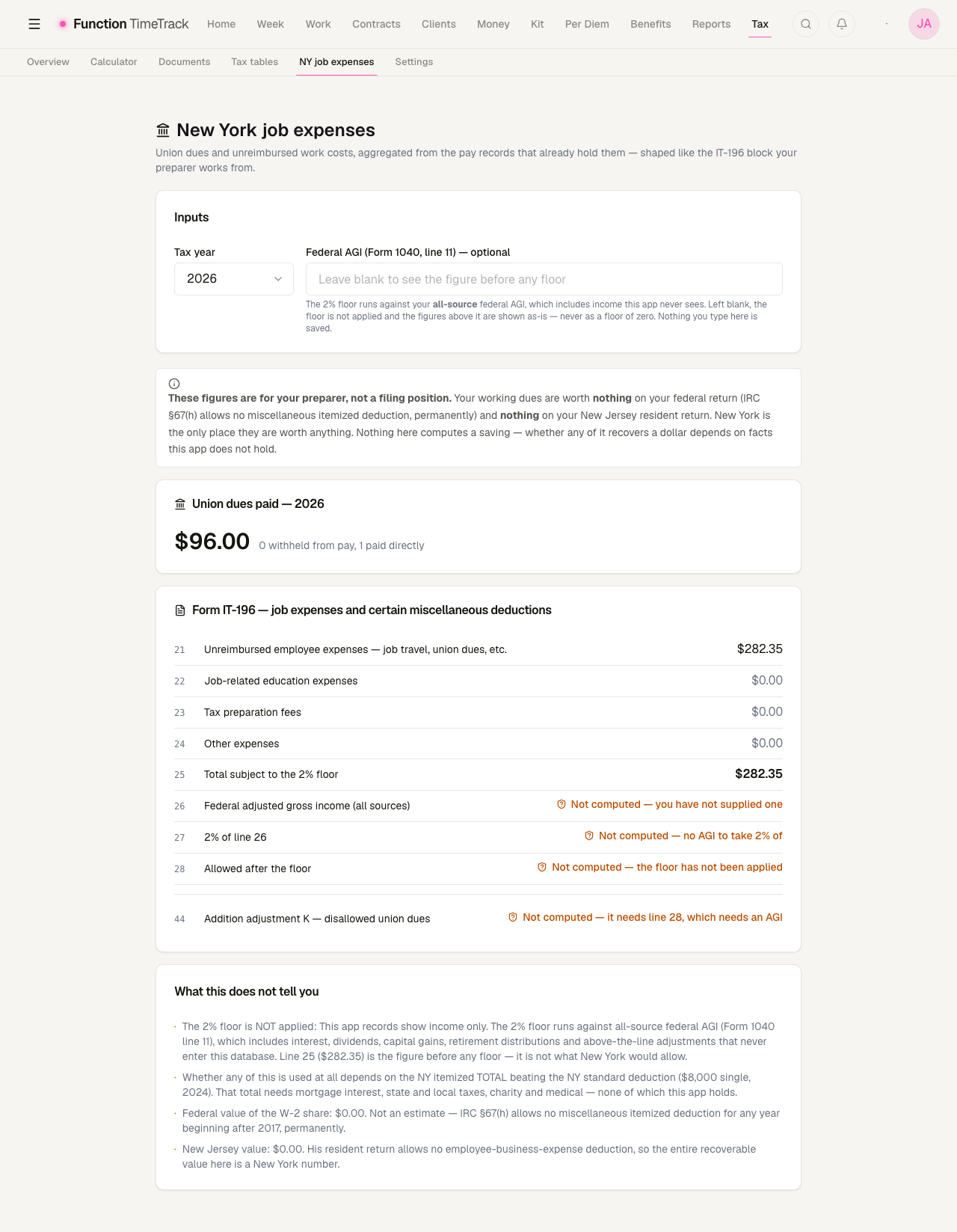
Every line it cannot compute says why
Leave the AGI blank and lines 26, 27, 28 and 44 read "Not computed — you have not supplied
one", "no AGI to take 2% of", "the floor has not been applied" and "it needs line 28, which
needs an AGI". None of them reads $0.00. That distinction is the whole point of the page: the
2% floor runs against your all-source federal AGI, which includes interest, dividends, capital
gains and retirement income this app never sees — so it cannot apply the floor, and it declines to
pretend the answer is zero.
The "What this does not tell you" section at the bottom is worth reading before you take any figure to a preparer. It states plainly that line 25 is the figure before any floor, that whether any of it is used at all depends on your NY itemised total beating the NY standard deduction, and that the federal and New Jersey values of this block are $0.00 — not an estimate, but the law.
How to read and reconcile
The app's job is to be checkable. When a real check lands:
- Match the gross first. Confirm the paystub's earned pay matches the engine's gross for the same period before assuming a withholding error.
- Walk the lines. Compare federal, state, local, and FICA/SE line by line against the card.
- Check below-the-line items. Dues should reduce your net, never your taxable gross.
- Expect per-period swing. A single check's effective rate is not your annual rate.
Log the week completely before you compare
The estimate is only as good as what you logged. A missing meal break, an unset work type, or a forgotten travel leg moves the gross — and therefore every tax line beneath it.
Common gotchas
- An unset state hides real tax. If a card says "set your state," your net is optimistic until you fix it in Tax Settings. A "no income tax" label, by contrast, is a real answer.
- Blank rate fields are intentional. Leaving State Tax Rate / Default Withholding Rate empty lets the app resolve them. Only fill them to override.
- W-2 vs 1099 changes what the numbers mean. On 1099 the amounts are money to set aside (including SE tax), not money already gone.
- Two employers can each hit the SS cap. That's correct; you recover the excess on your 1040.
- Local tax is by residence. NYC/Yonkers/etc. follow where you live, not where you shoot.
- Dues don't cut your tax. They're below the line — take-home only.
- The rates are estimates. Built-in state rates are simplified approximations; reconcile against your actual paystub and override if needed.
What you actually do
- Set filing status and state of residence — the two settings that matter most.
- Add local wage tax only if your city has one.
- Enter Expected Annual Income to steady your marginal-rate estimates.
- Leave rate overrides blank unless you have a real reason to force one.
- Reconcile real checks against the estimate and treat genuine deltas as worth chasing.
Benefits & union funds
Track health, pension, annuity, vacation, and working dues from your logged work, manage fund offices and their accounts, reconcile what the funds actually received, and pull the quarterly remittance report.
Invoicing
Create invoices from your timesheets, track them from draft to paid, record partial payments, and share or export a PDF.