Invoicing
Create invoices from your timesheets, track them from draft to paid, record partial payments, and share or export a PDF.
The Invoices page is where you bill your clients and keep track of what's been paid. You can build an invoice line-by-line by hand, or — the fast path — turn a priced week straight into a draft invoice, then move it through its lifecycle: Draft → Sent → Paid, with stops for partial payments, overdue, and void along the way.
This page walks through every task you'll actually do, in the order you'll do them.
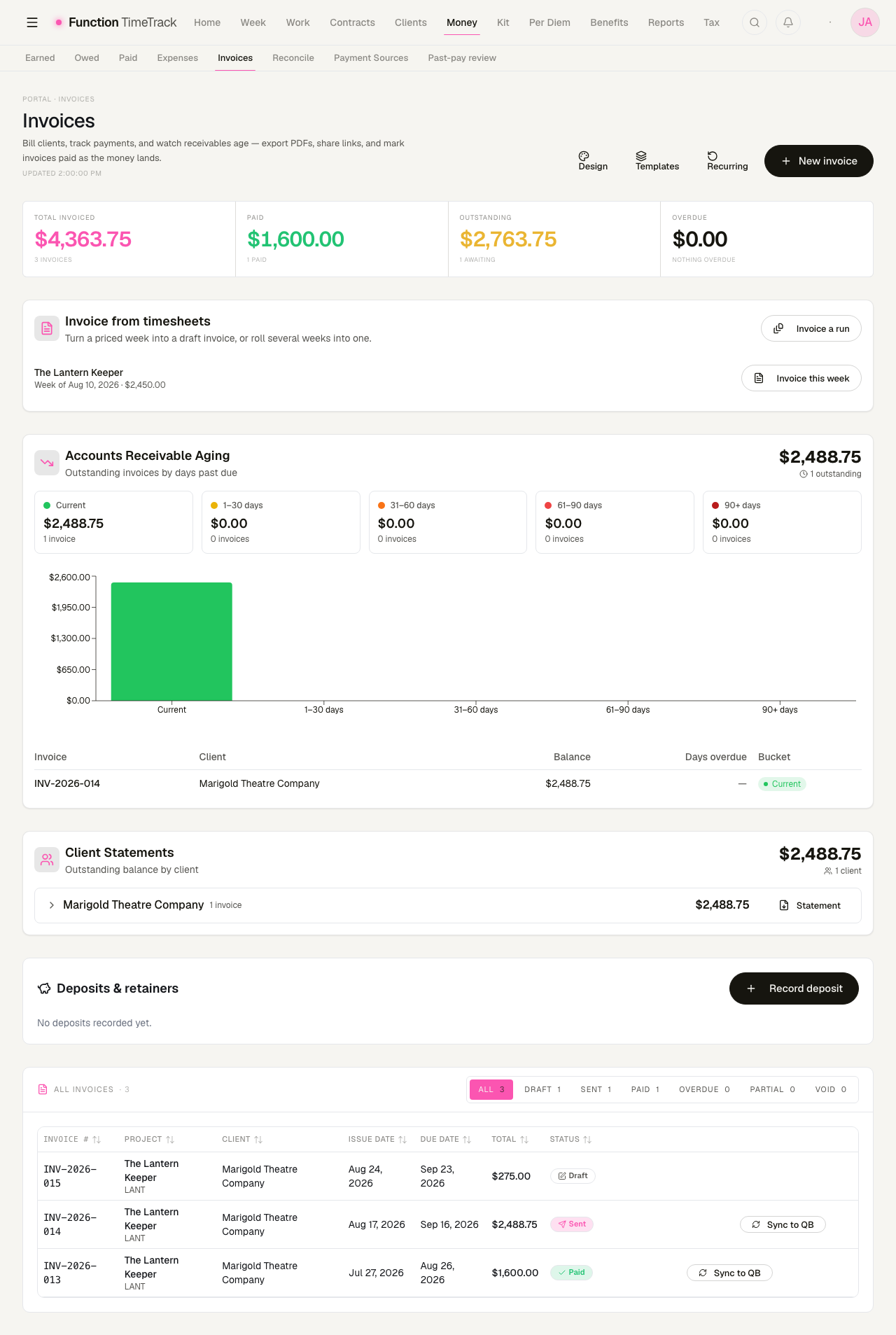
The page, top to bottom
- Header actions — Design, Templates, Recurring, and New invoice.
- The stat band — four tiles: Total invoiced, Paid, Outstanding, and Overdue.
- Invoice from timesheets — the fast path (below).
- AR aging — outstanding receivables bucketed by age (current, 1–30, 31–60, 61–90, 90+ days past due), with the total outstanding and a per-invoice balance and days-overdue table.
- Client statements — the same receivables rolled up by client: each client's combined outstanding balance, the overdue portion, and the open invoices behind it.
- Deposits & retainers — see the note at the end of this page.
- All invoices — the filterable, sortable table.
The lifecycle at a glance
Every invoice has a status, and status controls what you can do with it. The app only allows these moves:
- Draft → Sent, or Void
- Sent → Paid, Overdue, Partially paid, or Void
- Overdue → Paid, Partially paid, or Void
- Partially paid → Paid, or Void
- Paid → Void
- Void → (nothing — this is the end of the line)
A Draft is a work-in-progress: fully editable, not yet a bill. Sent means it's gone to the client and is awaiting payment. Paid means it's settled. Void preserves the invoice for your records but marks it dead — you void instead of deleting once an invoice has been sent to a client.
Draft is the only freely-editable state
Some operations — like importing kit fees into an existing invoice — only work while the invoice is still a Draft. Once an invoice is Sent or Paid, treat its contents as locked. If something is wrong on a Sent/Paid invoice, void it and issue a new one.
Invoice a week from a timesheet
The quickest way to bill is to let the app build the invoice from a week you've already priced. The Invoice from timesheets card lists your workspace's timesheets, each showing the project and the week (for example, "Week of Jul 6, 2026") along with its gross amount.
To invoice a single week:
- Find the week you want to bill in the Invoice from timesheets card.
- Click Invoice this week on that row.
- A new Draft invoice is created and opens for you to review.
The draft's line items are built directly from what the timesheet already priced — the app does not re-calculate your pay. You'll see up to four kinds of lines, each only if it has a nonzero amount, in this order:
- Labor — the week's gross, with the quantity set to the number of days worked.
- Kit / equipment rental — your kit charges for the week.
- Per diem — approved per-diem for the week.
- Reimbursable expenses — any reimbursable expenses on the week.
Each line also carries a tax classification (W-2 wages vs. 1099 vs. non-taxable) behind the scenes, which is why per diem and reimbursements are handled differently from labor. You don't have to set any of this — it comes from your contract's employment type.
The labor line reconciles to your timesheet by design
The Labor line equals the timesheet's total gross for that week — the app reuses the same numbers it already derived. If your invoice's labor doesn't match the timesheet you expected, you're probably looking at the wrong week, not a math error.
Invoice a run (roll several weeks into one)
Working a multi-week run and want to bill it as a single invoice? Use Invoice a run.
- Click Invoice a run in the top-right of the Invoice from timesheets card.
- In the dialog, check the weeks you want to combine. Each row shows the project, the week, and its amount.
- Click Invoice N weeks.
- One Draft invoice is created, with each week's labor, kit, per-diem, and reimbursable lines added in date order.
Nothing is billed twice — but nothing stops you, either
Creating a run invoice doesn't "consume" the weeks. The same timesheets stay in the list, so take care not to invoice a week once on its own and again inside a run. Review the draft's line items before sending.
Create an invoice by hand
When you're billing something that isn't a straight timesheet week, build one manually.
- Click New invoice in the top-right of the Invoices page.
- Pick the Project the invoice belongs to.
- Fill in the client name (and address, if you want it on the PDF).
- Set the issue date and, optionally, a due date.
- Add line items — each has a description, quantity, and rate; the amount is calculated for you. Use Add line item for more rows, and remove rows you don't need (you must keep at least one).
- Optionally set tax — the total updates automatically as you edit lines and tax.
- Add any notes.
- Save. The invoice is created as a Draft.
Every invoice needs a project
An invoice must be attached to a project in your workspace — that's how it's grouped in reporting and analytics. Create the project first if it doesn't exist yet.
Edit a draft
Click any invoice row to open its details, or use the pencil icon on the row to jump straight into editing. Editing is available for the fields you'd expect — project, client, dates, line items, tax, and notes.
Practically speaking, edit while an invoice is still a Draft. You can open the editor on a Sent invoice, but once a client has the invoice, prefer to void and reissue rather than quietly change a document they've already received.
Send an invoice
When a draft is ready to go to the client:
- Click the Send (paper-plane) icon on the invoice row, or use the same action from the invoice details.
This moves the invoice from Draft to Sent and stamps the send date. That date is recorded only on the first Draft → Sent transition, so it reflects when the client actually first got it.
Sending sets the status — it doesn't email for you here
Marking an invoice Sent records that it's out for payment and unlocks the paid/partial/void actions. Deliver the actual document to your client using Share or the PDF (below).
Record payment
Mark as paid in full
Once a client pays a Sent (or Overdue) invoice in full:
- Click the check icon on the invoice row (available on Sent invoices), or use Mark as paid in the details.
- Confirm the prompt — this records money, so the app asks before it lands.
The invoice moves to Paid, its paid amount is set to the full total, and the paid date is stamped.
Record a partial payment
Clients often pay in installments. Partial payments accumulate — each one adds to a running paid
total on the invoice, and the balance is recalculated as total − paid.
- While the paid total is above zero but below the invoice total, the invoice sits at Partially paid.
- As soon as the accumulated payments reach or exceed the total, the invoice auto-promotes to Paid and stamps the paid date for you.
Partial payments add up — they don't overwrite
Recording a $X payment on an invoice that already has $Y recorded leaves it at $X + $Y, not $X. You never have to re-enter the running total yourself.
Void an invoice
Once an invoice has been Sent or Paid, you can't delete it — you void it, which keeps it on record for audit purposes but marks it dead.
- Click the void (rotate) icon on a Sent or Paid invoice row.
- Confirm the prompt.
The invoice moves to Void, and if you gave a reason it's saved into the invoice's notes as
VOIDED: <reason>. Void is terminal — a voided invoice can't move to any other status.
Delete a draft
Deleting is reserved for invoices that haven't mattered to anyone yet: only Draft and Sent invoices can be deleted. (For anything Paid, use Void instead.)
- Click the trash icon on a Draft or Sent invoice row.
- Confirm — this cannot be undone.
Deleting also cleans up references: it detaches the invoice from any linked expense entries and income entries so nothing is left pointing at a deleted record.
Delete is permanent; Void is reversible-safe
Prefer Void for anything a client has seen. Reach for Delete only for a genuinely throwaway draft you created by mistake.
Export a PDF
Every invoice can be exported as a PDF that reflects your saved invoice design.
- Click the Download icon on the invoice row (or Download PDF in the details).
The file downloads as invoice-<invoice number>.pdf. Use this to email or archive a copy for your
records. The PDF uses the design you've configured under Design (top-right of the Invoices page).
Share a link
Instead of attaching a file, you can share a link to the invoice.
- Click the Share icon on the invoice row. On devices that support it, the native share sheet opens; otherwise the link is copied to your clipboard and you'll see a confirmation toast.
The first time you share an invoice the app mints a share token for it and builds the link
from that — /invoices/shared/<token>, never from the invoice's own id. Sharing the same invoice
again reuses the same token, so a link you have already sent keeps working.
Anyone with the link can view the invoice without logging in. Share links are unguessable and workspace-isolated, and a link can be set to expire — an expired or revoked link simply reads as "not found," so it never reveals whether an invoice exists.
What your client sees
The shared page is deliberately bare: no navigation, no app furniture, just the invoice rendered in your saved design, with a download and a share control floating in the corner. Your client does not need an account and cannot see anything else in your workspace.
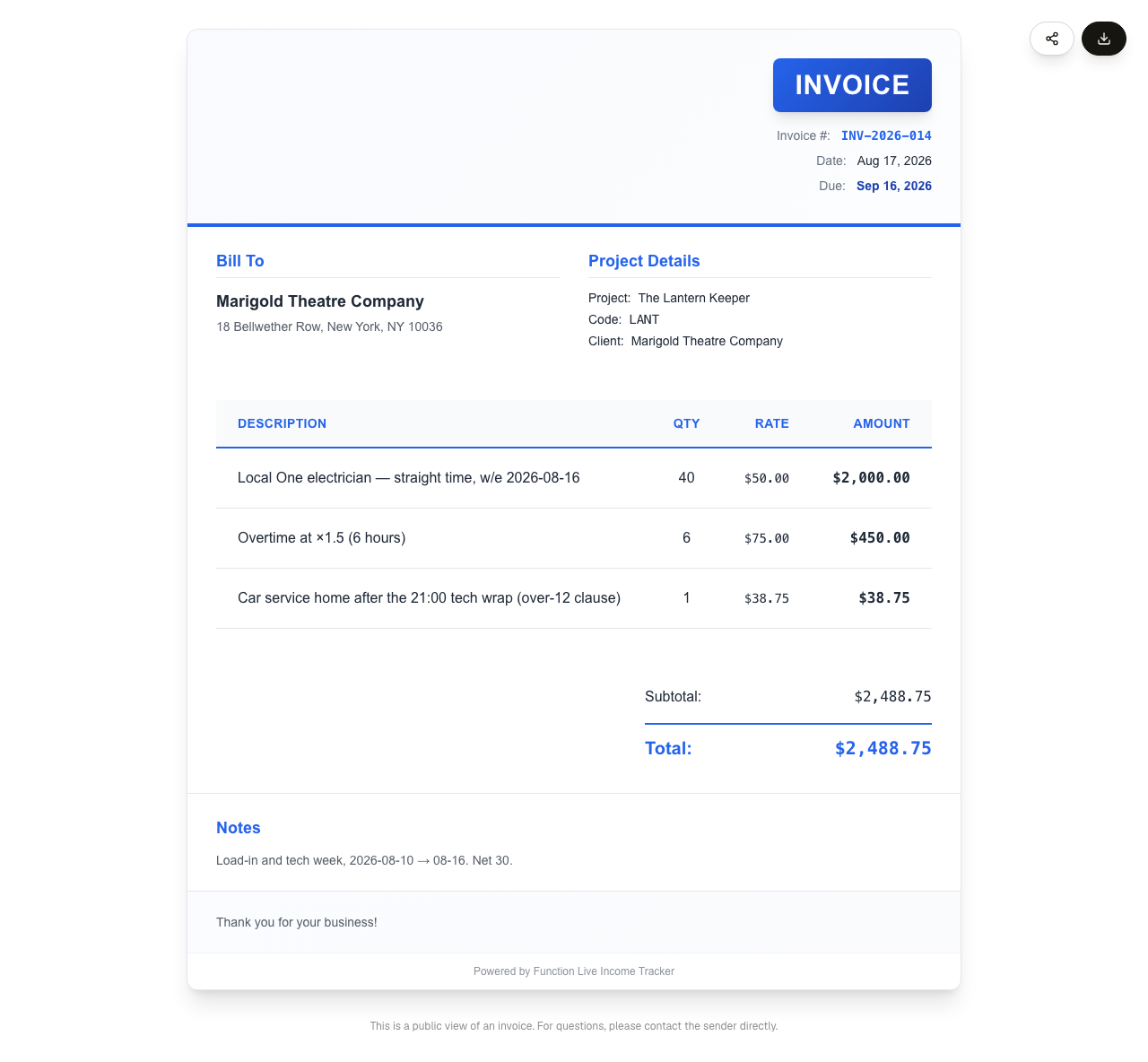
Share vs. PDF
Use Share when you want the client to view a live page; use PDF when they need a file to file away or forward. Both represent the same invoice.
Find and filter your invoices
The All Invoices table lists everything in the workspace. Above it, the status filter lets you narrow to a single status — All, Draft, Sent, Paid, Overdue, Partial, or Void — and each tab shows a live count. Because the counts come from a server-side aggregate over all your invoices, the per-tab numbers always reconcile to the All total, even beyond the first page of results.
The counts above are read from the same server aggregate the tiles use, so All always equals the sum of the individual tabs.
'Outstanding' on the stat band is not the same figure as the ageing panel
The Outstanding tile is computed as total invoiced minus the total of PAID invoices, over every invoice in the workspace. That includes drafts — which nobody owes you yet — and voided invoices, which are dead by definition. It also ignores partial payments, so a part-paid invoice contributes its whole total.
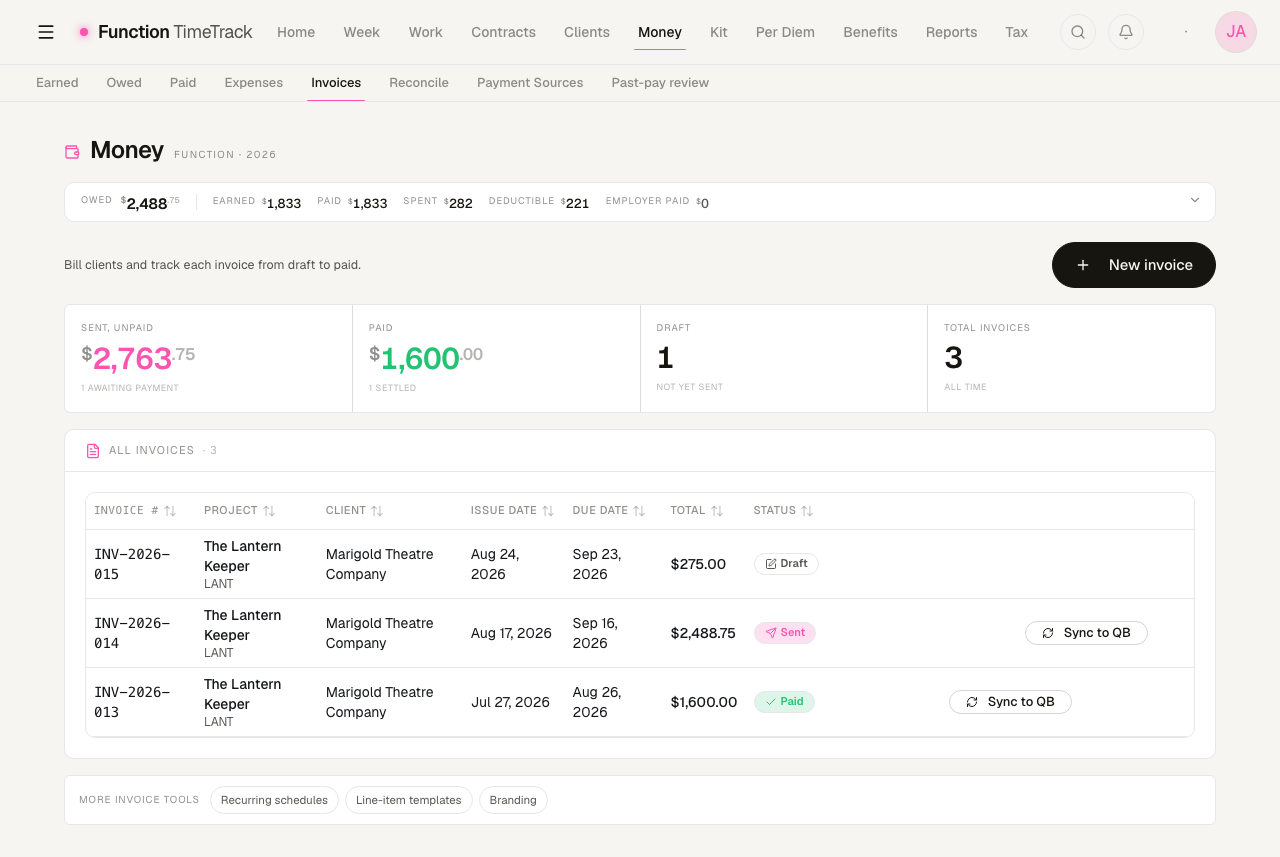
In the screenshot above, the tile reads $2,763.75 while the Accounts Receivable Aging
panel three inches below it reads $2,488.75 for the same workspace. The difference is the
$275 draft. On /money/invoices the same figure is labelled "Sent, unpaid" beside a "Draft: 1"
tile counting that very invoice, while the Money band above them reads Owed $2,488.75.
The ageing panel, the client statements and the Money hub's Owed band are the figures to trust for "what am I actually owed". Read the Outstanding tile as invoiced but not yet marked paid.
You can also:
- Search the table (by invoice number, project, client, and similar) using the search box.
- Sort by clicking sortable column headers — invoice number, project, client, issue date, due date, total, or status.
- Read the stat band at the top for Total invoiced, Paid, Outstanding, and Overdue at a glance.
Issue a credit note
When you need to credit money back against an invoice that has already gone out — a corrected line, a goodwill adjustment, a partial cancellation — you issue a credit note rather than editing the invoice.
- Open the invoice's details.
- Choose Credit note.
- Enter the amount and a reason (an optional credit-note number can be set too).
- Save.
The issued invoice is never mutated. The credit is recorded as its own document, and prior credit notes are listed on the same dialog so the surface stays honest about what has already been credited.
Templates, recurring schedules, and design
Three sub-pages hang off the header.
Design — /invoices/design
The Invoice Design Studio controls how your PDF and your public share page look: quick themes, custom colours, your branding block (company name, tagline, address, logo and its position and size), and layout. Every PDF you export and every share link you send uses the saved design.
The segmented control at the top switches between Edit, Split and Preview. Split is the default and shows a live preview beside the controls.
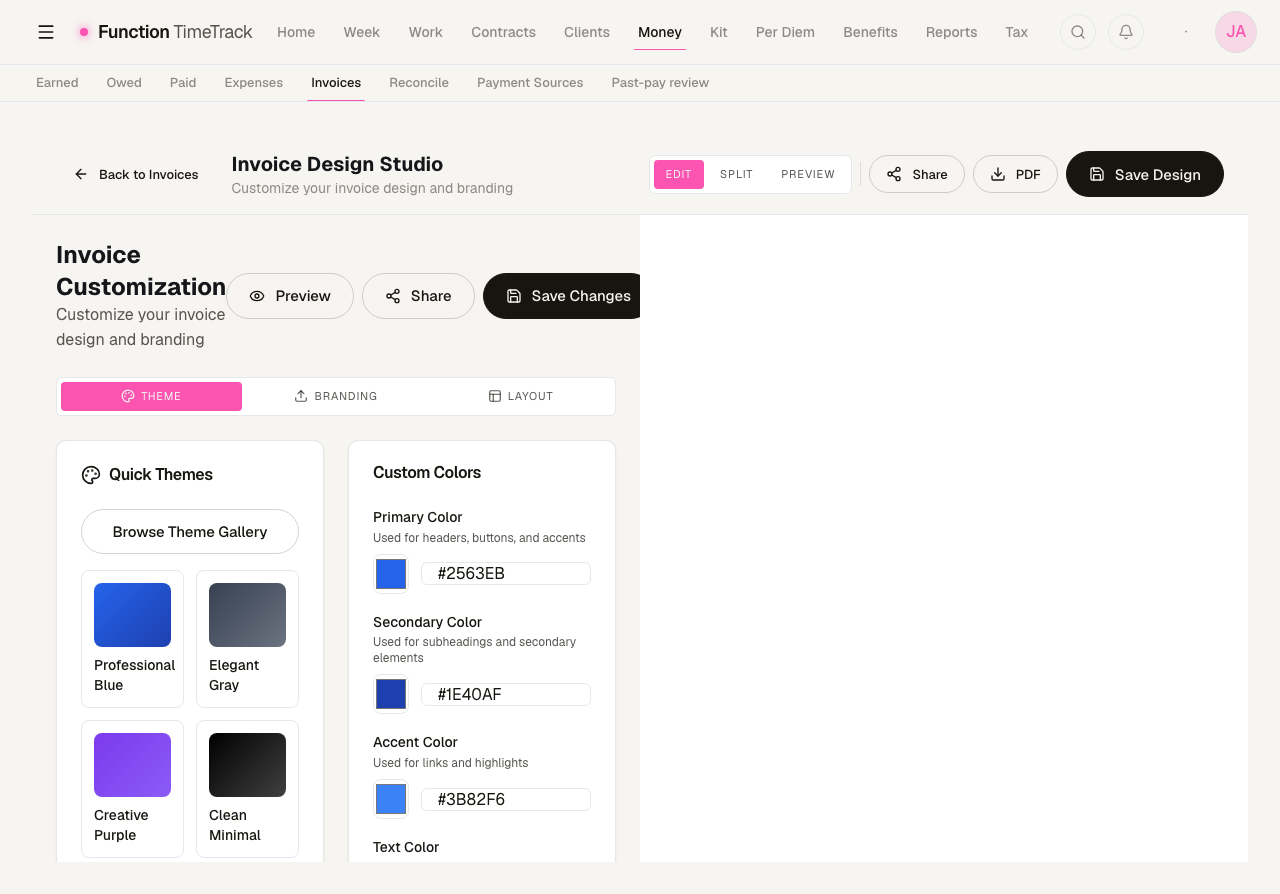
The live preview is a canned sample, not your invoice
The preview pane does not render one of your invoices. It renders a fixed demonstration invoice compiled into the app — a lighting-design bill to a named Broadway production company — which is identical in every workspace. Changing a colour updates that sample, and the colour change is real; the content you are looking at is not yours and never becomes yours. Export a PDF from a real invoice to see your own numbers in your own design.
Templates — /invoices/templates
Reusable whole-invoice line-item sets. Save the shape of an invoice you send often — a standard week, a standard install — then apply it inside the invoice form to prefill the lines. Each card shows the template's total, its category, and how many times you have used it; the row actions are Use, set-as-default (the star), duplicate, edit and delete.
You can search templates, filter by category, and switch between the grid and list views.
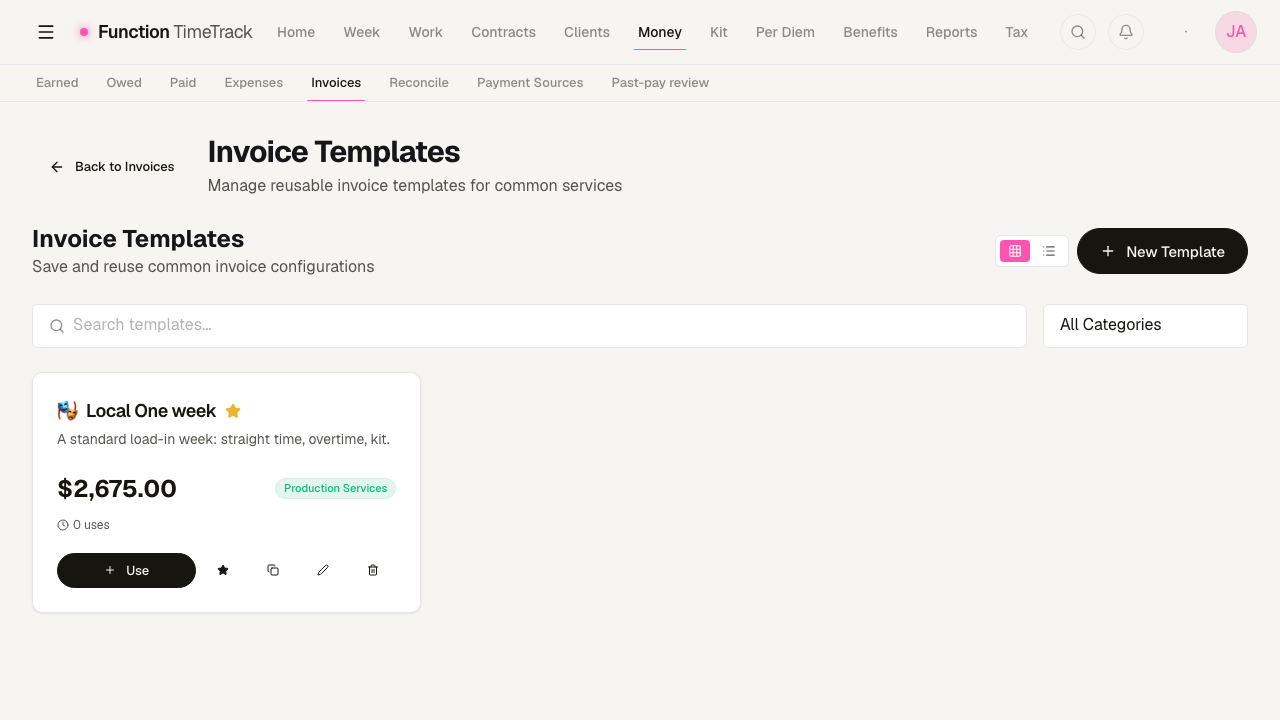
Two different things are called a template
This page holds whole-invoice templates. Separately, the app keeps a catalog of single line items with default rates. They are stored separately and edited in different places — if a saved line does not appear here, you are probably looking for the line-item catalog.
Recurring — /invoices/recurring
Schedules for invoices you raise on a cadence. A schedule stores its own client, line items, frequency, start date and optional end date or occurrence cap, and shows the next invoice date. Upcoming Invoices at the top lists schedules that are due, each with a Generate Now button; each schedule card can be paused, resumed, edited or deleted.
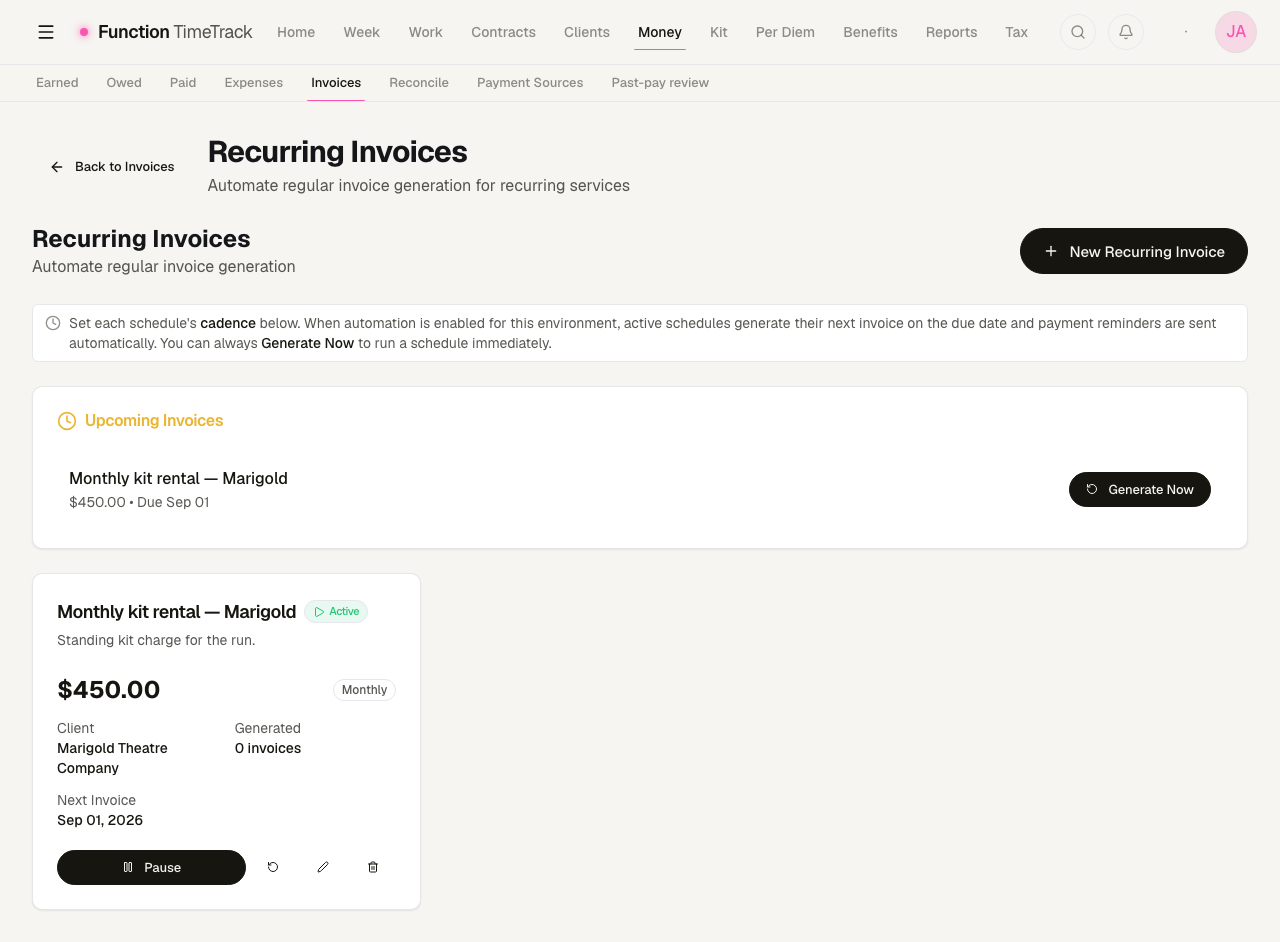
Auto-firing is off unless it's been switched on
A nightly scheduler exists and will raise every due invoice for you — but it is gated off by default, so nothing fires until it's enabled for the deployment. Until then the schedule is a reminder and Generate now is how invoices get raised. Either way, generated invoices land in your normal invoice list, and a given period fires exactly once.
Deposits & retainers
The Deposits & retainers panel records client money held as a pool and allocates it onto open invoices. A deposit's remaining balance is derived from what has been allocated, never stored, and allocation is disabled once a deposit is fully applied.
Deposits need to be switched on for your workspace
This is the one part of invoicing behind a switch. With nothing configured, creating or allocating a deposit is refused with "Deposits are not enabled for this workspace." Everything else on this page — drafts, sending, payments, PDFs, share links, aging, statements, credit notes — works without it.
QuickBooks sync
For Sent and Paid invoices, a QuickBooks status indicator appears in the row so you can push the invoice to QuickBooks and see its sync/payment state. If your workspace isn't connected to QuickBooks, you can ignore this — the rest of invoicing works independently.
The same invoices, inside the Money hub
Invoicing appears in two places and they are not duplicates.
/invoices — the page this guide has been describing — is the full workspace: ageing, client
statements, deposits, invoice-from-timesheets, templates, recurring schedules and branding. It is
what the Money → Invoices navigation entry points at.
/money/invoices is the summary the Money hub needs so "what am I owed" and "what did I
bill" can be read on one surface. Same invoices, same DRAFT → SENT → PAID workflow, same details
modal — without the receivables analysis. It has no separate nav entry of its own; the Money
sub-nav carries one Invoices tab, pointing at the fuller page, and it stays lit here too.
Reconciliation — /money/reconcile
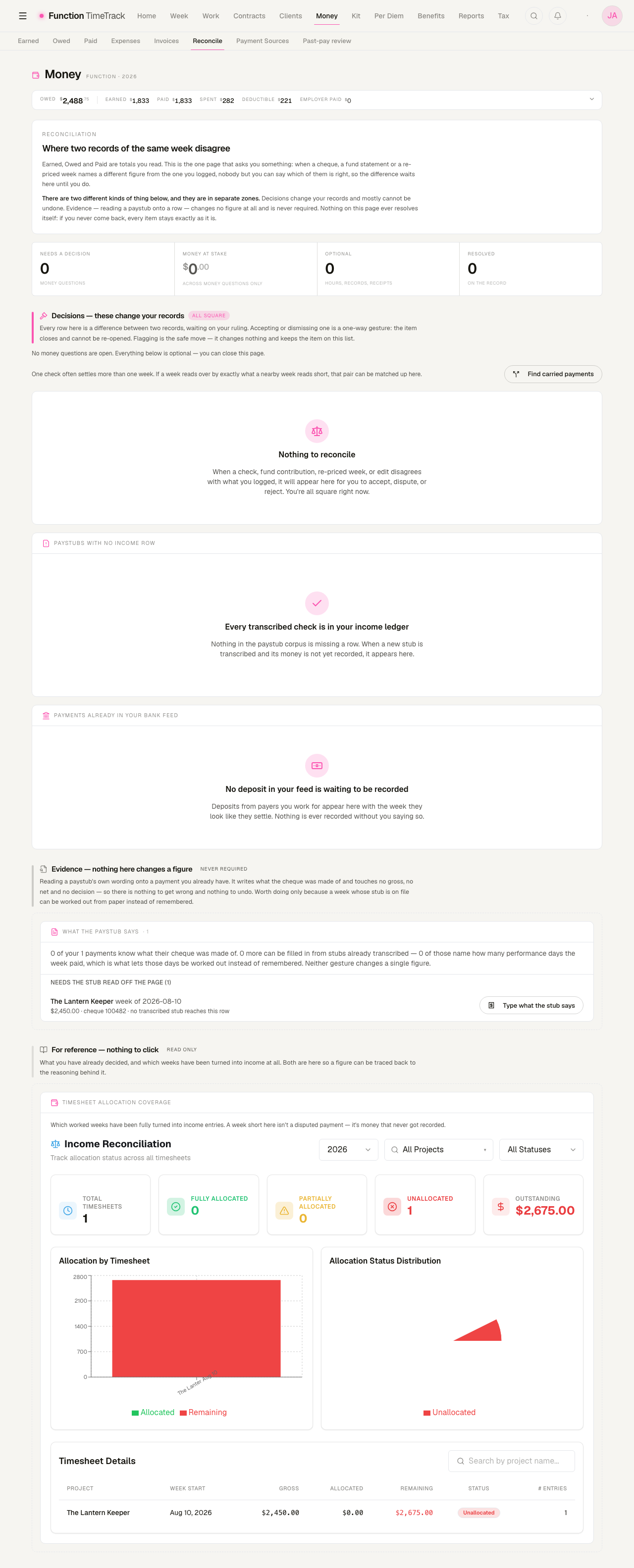
The page for where two records of the same week disagree. Earned, Owed and Paid are totals you read; this is the one page that asks you something. When a cheque, a fund statement or a re-priced week names a different figure from the one you logged, the difference waits here until you rule on it.
It is organised into two zones that behave differently, and the page says so on its face:
- Decisions — differences waiting on your ruling. Accepting or dismissing one is a one-way gesture: the item closes and cannot be re-opened. Flagging is the safe move — it changes nothing and keeps the item on the list. Nothing here ever resolves itself; if you never come back, every item stays exactly as it is.
- Evidence — reading a paystub's own wording onto a payment you already have. This changes no figure at all and is never required. It is worth doing only because a week whose stub is on file can be worked out from paper instead of from memory.
Below those sit three read-only reference sections: paystubs with no income row, payments already in your bank feed that are waiting to be recorded, and timesheet allocation coverage — which worked weeks have been turned into income entries at all.
A carried payment is not a mismatch
One cheque often settles more than one week. If a week reads over by exactly what a nearby week reads short, use Find carried payments to pair them up rather than accepting two offsetting differences.
/income/reconciliation is the retired address for this page and still redirects here.
Past-pay review — /money/translation-review
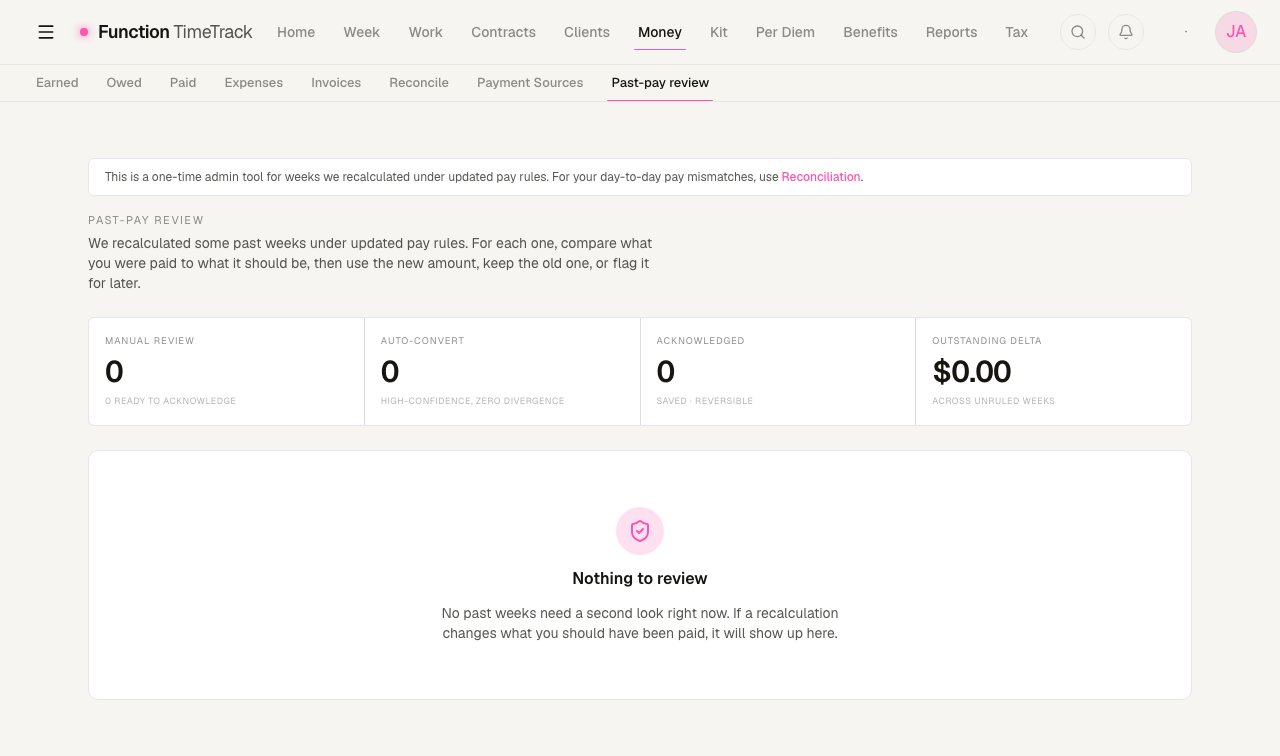
A one-time admin tool, not part of anyone's week. When pay rules change and past weeks are recalculated under them, this wizard walks the weeks whose old and new figures diverge so you can review the difference deliberately rather than discovering it in a total.
For each divergent week you compare what you were paid against what it should be, then use the new amount, keep the old one, or flag it for later. Four counters head the page: Manual review, Auto-convert (high-confidence, zero divergence), Acknowledged (saved, and reversible), and the Outstanding delta across every week you have not ruled on.
The page says as much at the top and points day-to-day pay mismatches at Reconciliation instead. If you have never re-priced historical weeks, you will find "Nothing to review" — and that is the expected state, not a failure to load.
Tips & gotchas
- Invoice-a-week never re-prices your work. The labor line mirrors the timesheet's gross. Fix pay problems in the timesheet, not on the invoice.
- Draft is your editing window. Kit-fee imports and clean edits assume Draft. After Sent, void and reissue rather than rewriting a document the client already has.
- Partial payments accumulate and auto-complete. You don't track the running total by hand — the app does, and flips the invoice to Paid at the finish line.
- Void, don't delete, once it's been sent. Delete is only for Draft/Sent and is permanent; Void keeps the audit trail.
- A run doesn't lock its weeks. Avoid double-billing a week both on its own and inside a run — review draft lines before sending.
- Send records status, not delivery. Actually get the invoice to your client with Share or the PDF.
- Credit, don't rewrite. A credit note leaves the original invoice untouched and on record.
- Recurring means scheduled, not automatic. You still press Generate now.
- "Outstanding" on the stat band counts drafts and voids. Read the AR aging panel or the client statements for what you are actually owed.
- The design preview is a sample, not your invoice. Export a PDF to see your own numbers.
- Reconciliation decisions are one-way. Flag when you are unsure; accepting closes the item.
Taxes & withholding
Set up your filing status, state, and rates so Function Timetrack can estimate the tax withheld (W-2) or set aside (1099) on every paycheck — and read those numbers with confidence.
Clients & payers
Two directories that answer two different questions — who hired you and who you invoice (Customers), and who the money actually comes from (Payment Sources), including how to crosswalk the names a payroll house prints on a cheque stub.